



 171
171
All agent profile data on the website is managed in APT. To update an agent's contact details, bio, headshot, title, and more, follow these steps:
1. Log in to APT
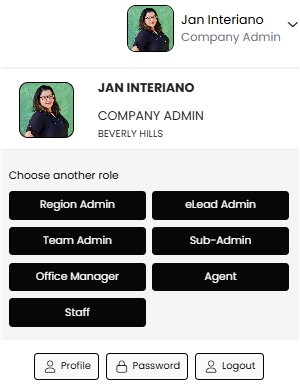
Use your Region Admin, Staff, Office Manager, or Admin profile. You can switch roles by clicking your name in the top-right corner.
2. Navigate to the Agent Management section
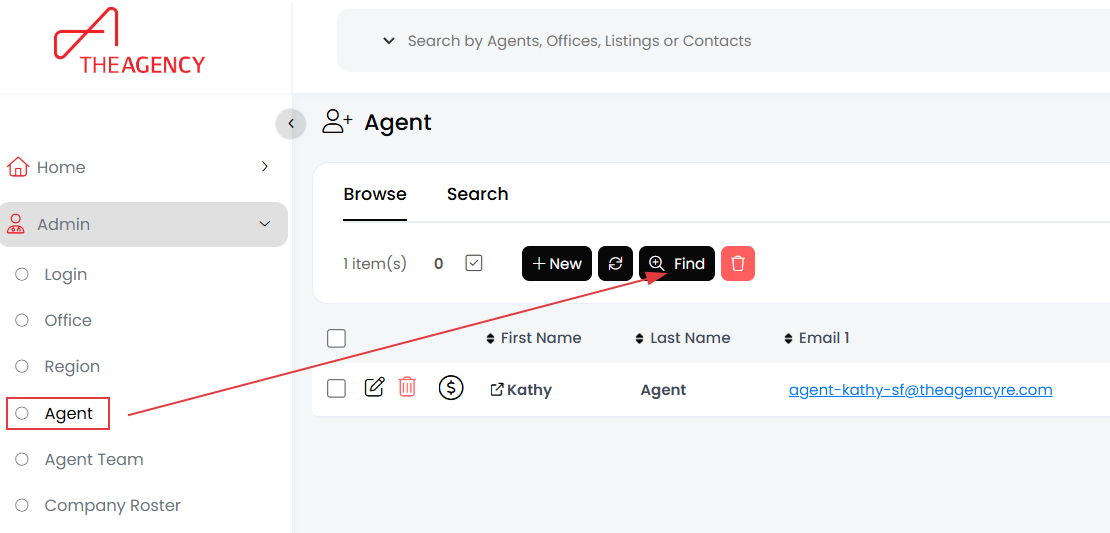
On the left navigation menu, go to Admin > Agent.
3. Find the agent's profile
Click the FIND button and search for the agent using filters like name, role, office, or email.
4. Edit agent details
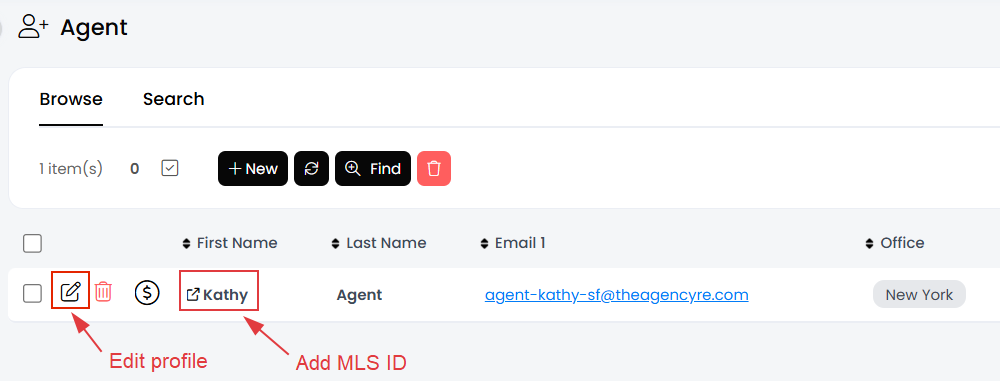
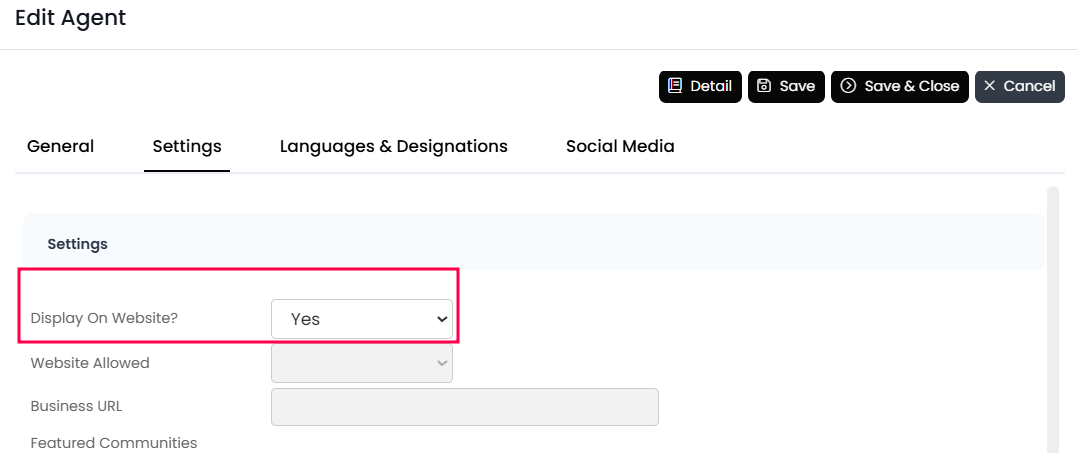
Click the pencil icon in the first column to edit the agent’s name, email, roles, title, license number, bio, social media, and more. Once your agent's profile is ready to go LIVE, scroll down to the Settings section and make sure "Display on Website" field is set to Yes. Save and Close the agent's profile.
5. Add agent MLS ID
Click the agent's first name instead of the pencil icon to open a profile summary. Here, you can:
- Add or update the agent's MLS ID (critical for linking MLS listings to the agent's page).
- Check the Login tab to verify if the agent has an associated account for APT access.
For login or MLS ID issues, contact [email protected].

