38
38
Use the Import/Export feature under the Contacts/Leads page to import a file of multiple contacts. This is the best way to mass-add contacts to your APT as opposed to adding each one individually.
PLEASE NOTE: It's super important you format your file in a very specific way.
Template: APT Contact List Template
Video: Click here to watch the video tutorial 📺
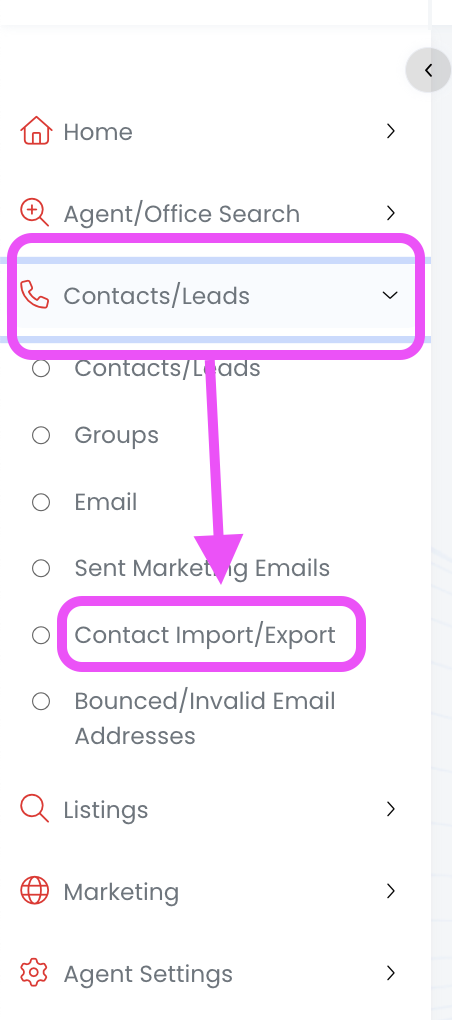
1.) From the left side menu, click on Contacts/Leads, and then click on Contact Import/Export
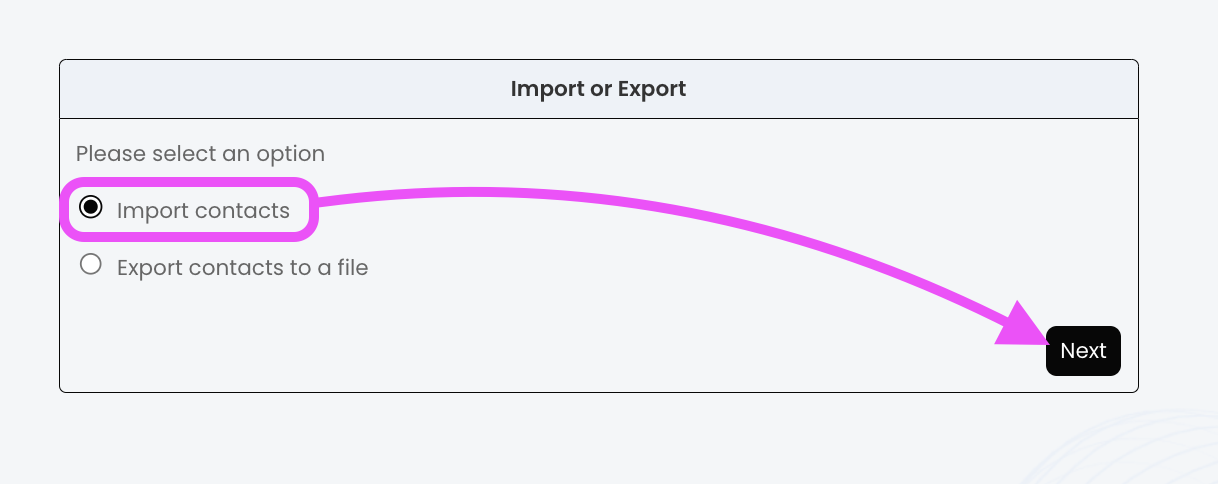
2.) Click on the Import contacts option, then click Next
3.) Click the drop-down arrow to expand the file type options, and then click the file type you're going to upload (must match the type of file of your contact list)
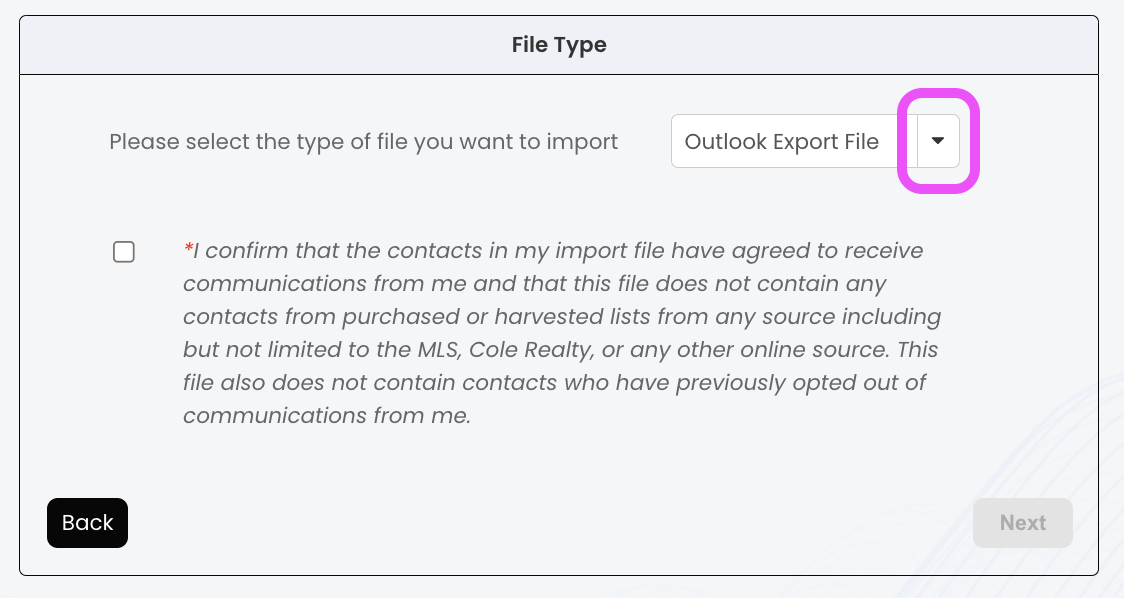
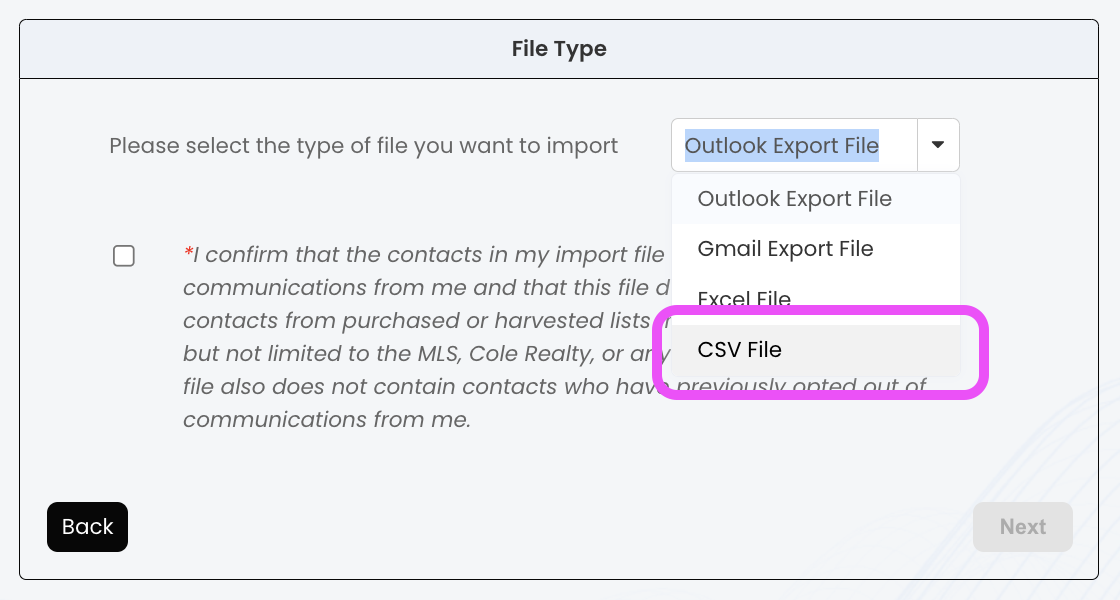
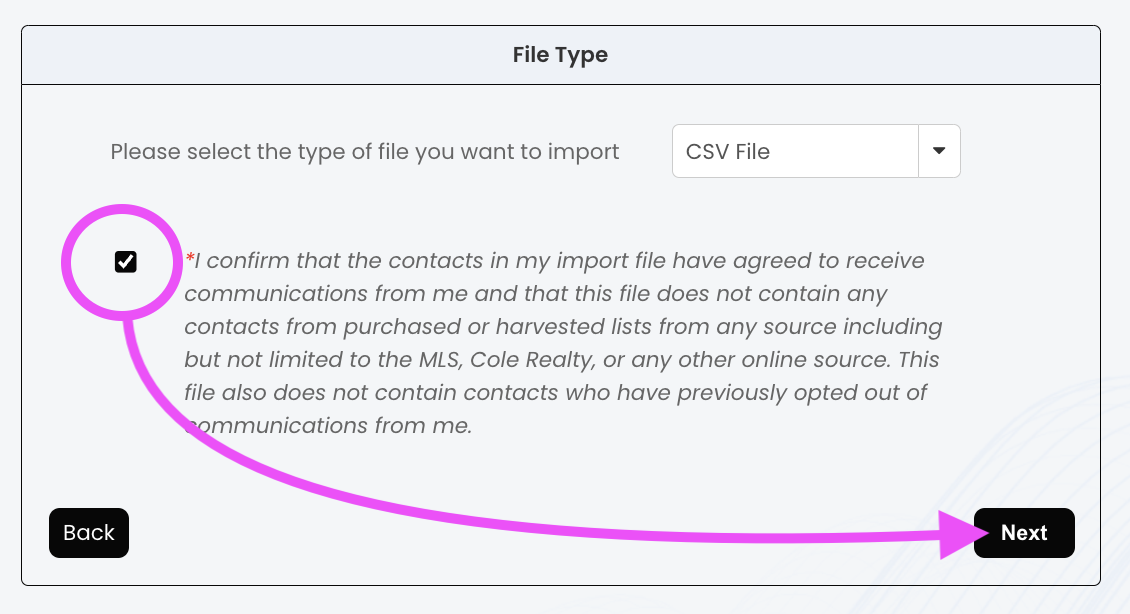
4.) Check the box, and then click Next
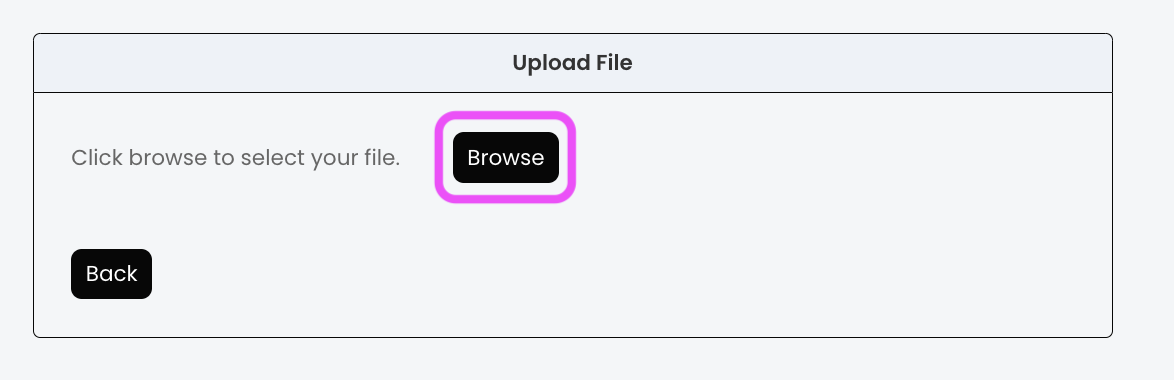
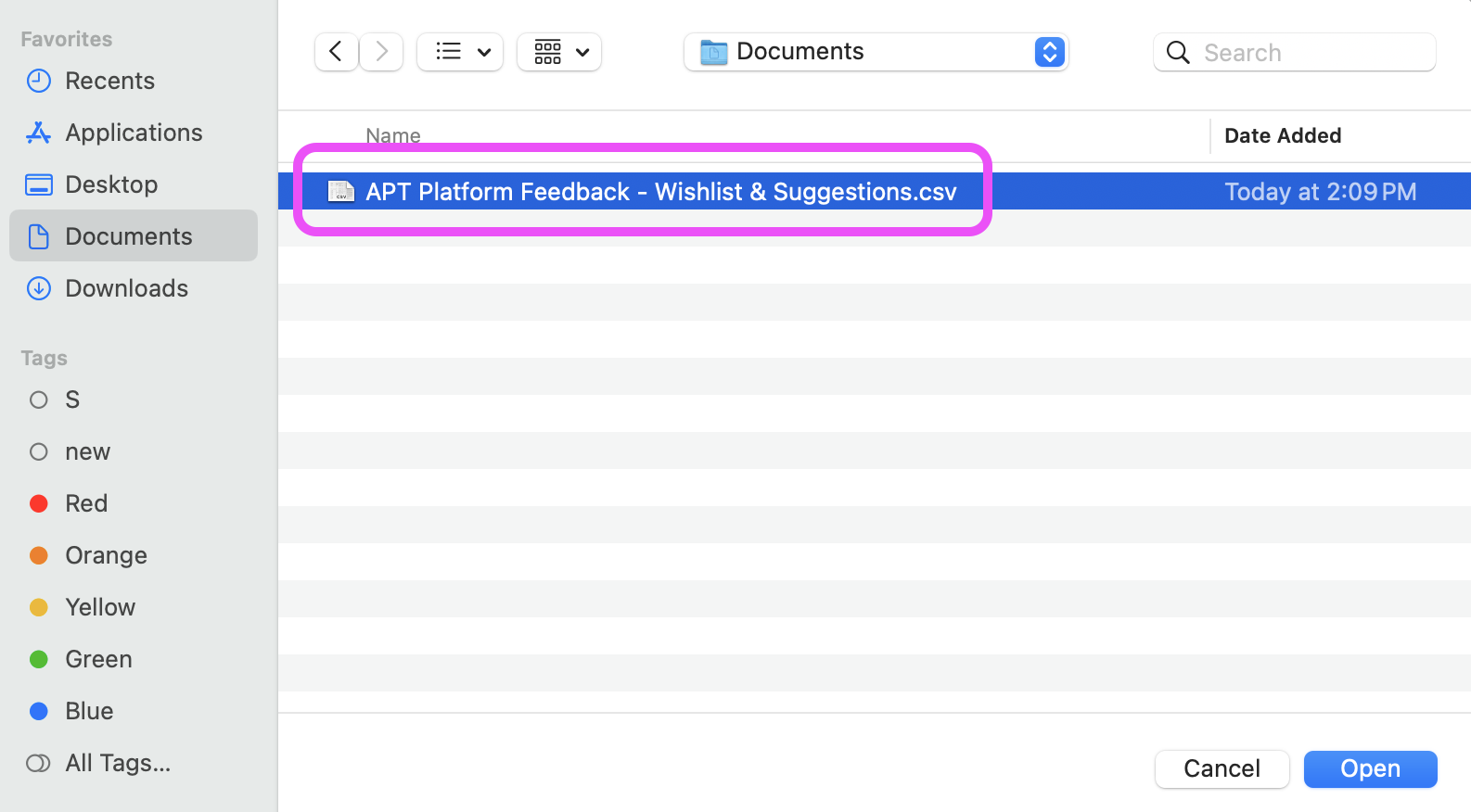
5.) Click the Browse button, and then double-click the contact file you want to upload
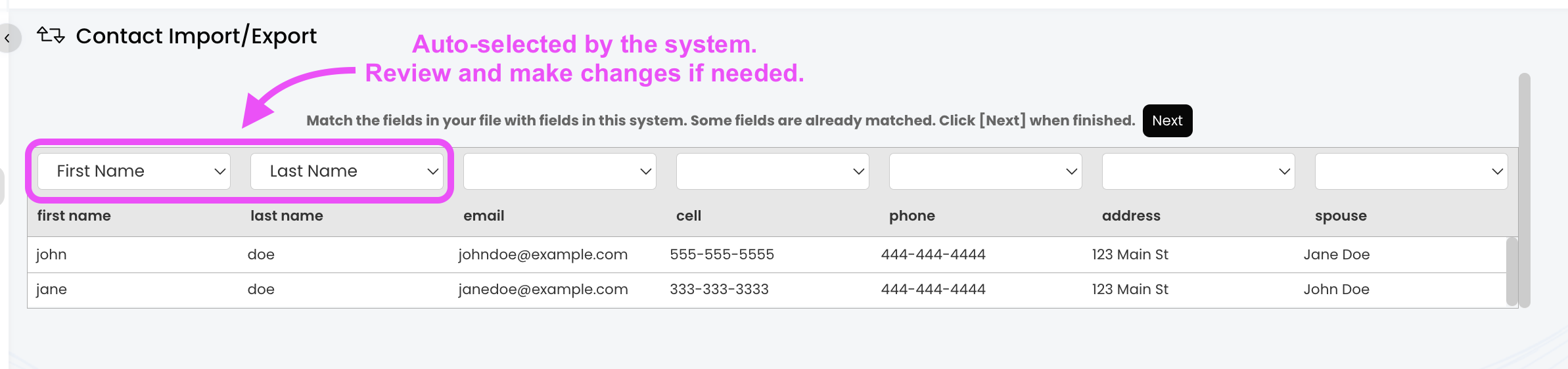
6.) Review the first row of data and make sure all the fields have been properly mapped. Here's how it works:
- APT will review your file and try to match the fields from your file to the fields in APT. Some may be blank and others may be filled in. If the first row of your file has fields that match APT, the system will auto-add those fields. If the first row of your file has fields that do not match APT, the area will be blank.
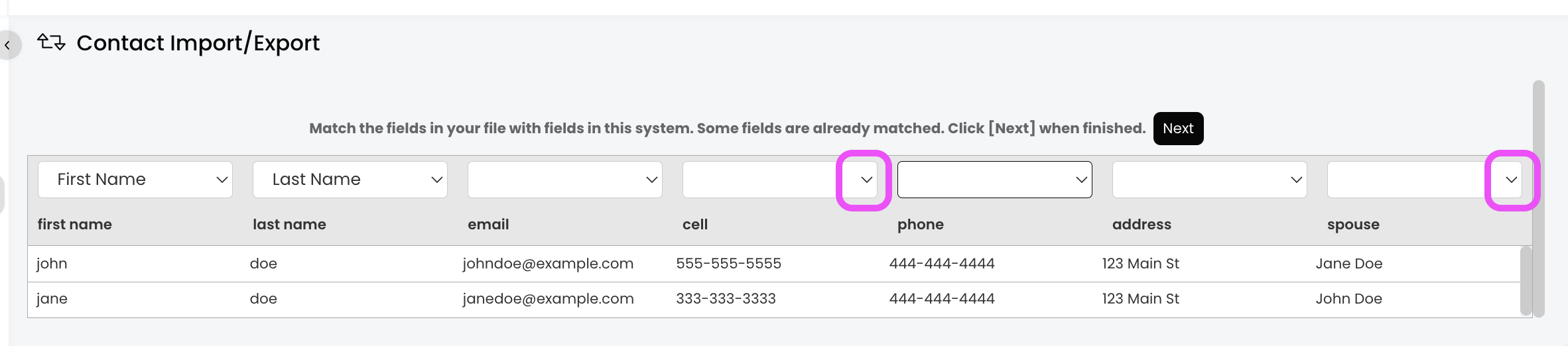
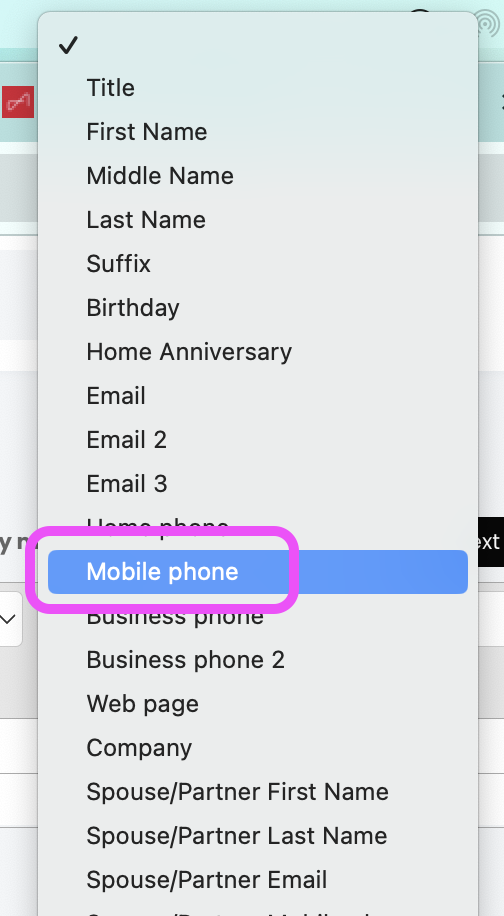
- Blank Fields: Click the blank area and select the field you want to map this information to.
- Filled in Fields: Review the auto-selected fields to make sure this is where you want the information mapped to. If it's not the right field, click the drop-down arrow and select a different field.
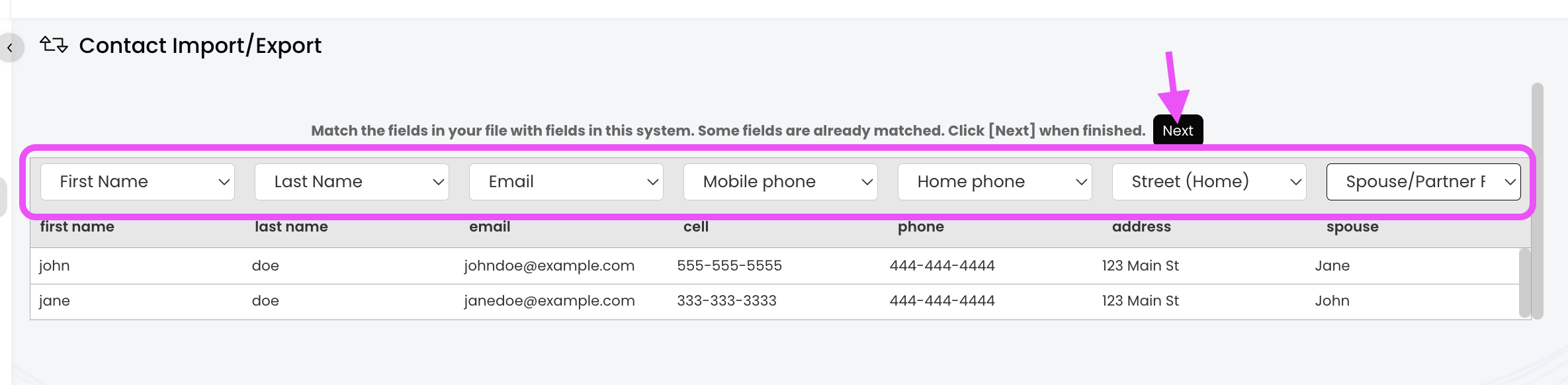
7. After all the fields have been selected, click Next
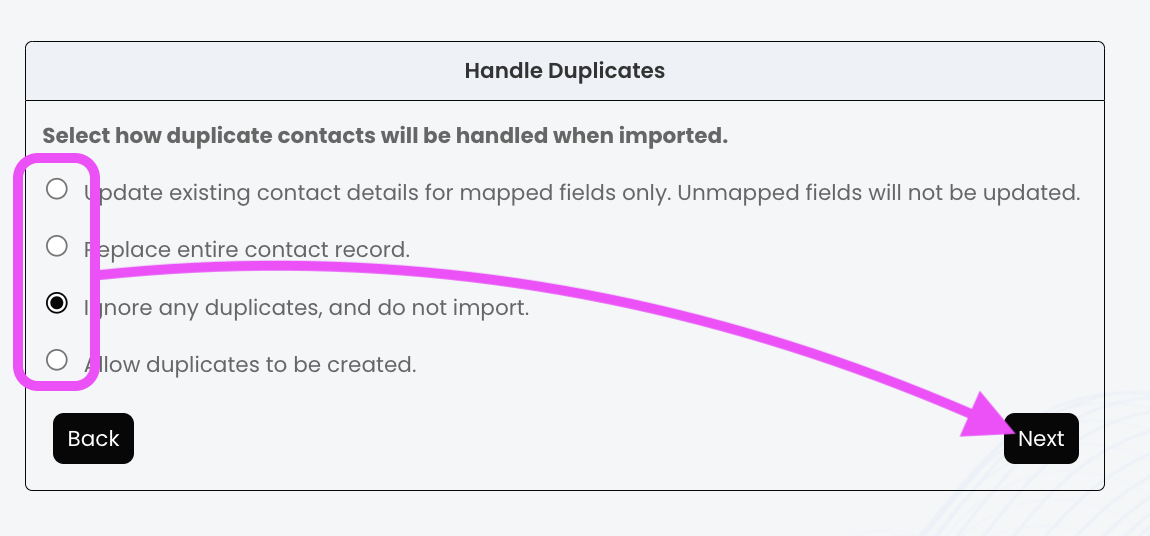
8.) Select the option you want when handling duplicate contacts, and then click on Next
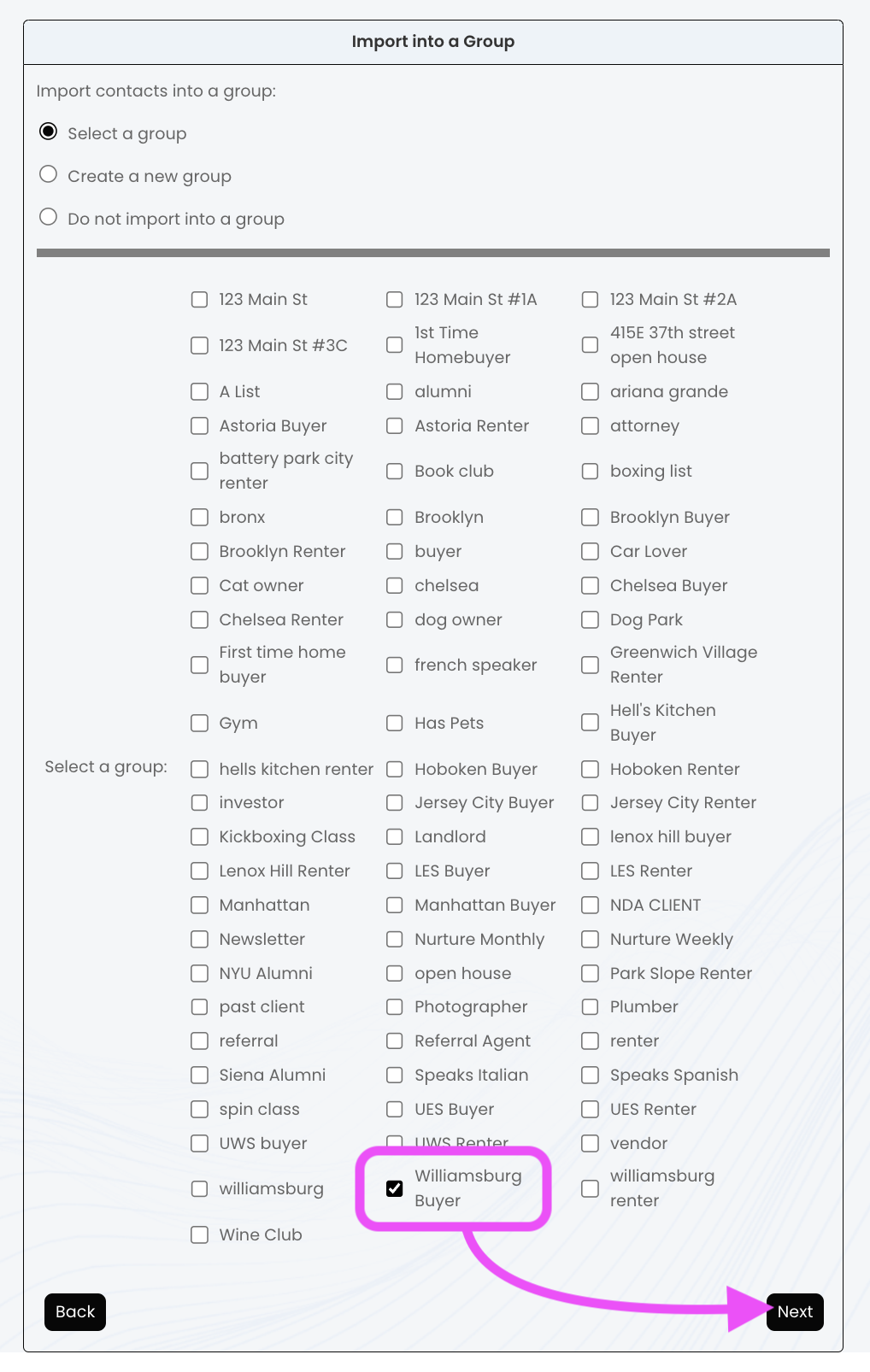
9.) Select the option you want for Groups, and then click Next
- Select a Group: Select this option if you want to add these contacts to a group. Then, check the box next to the Group name.
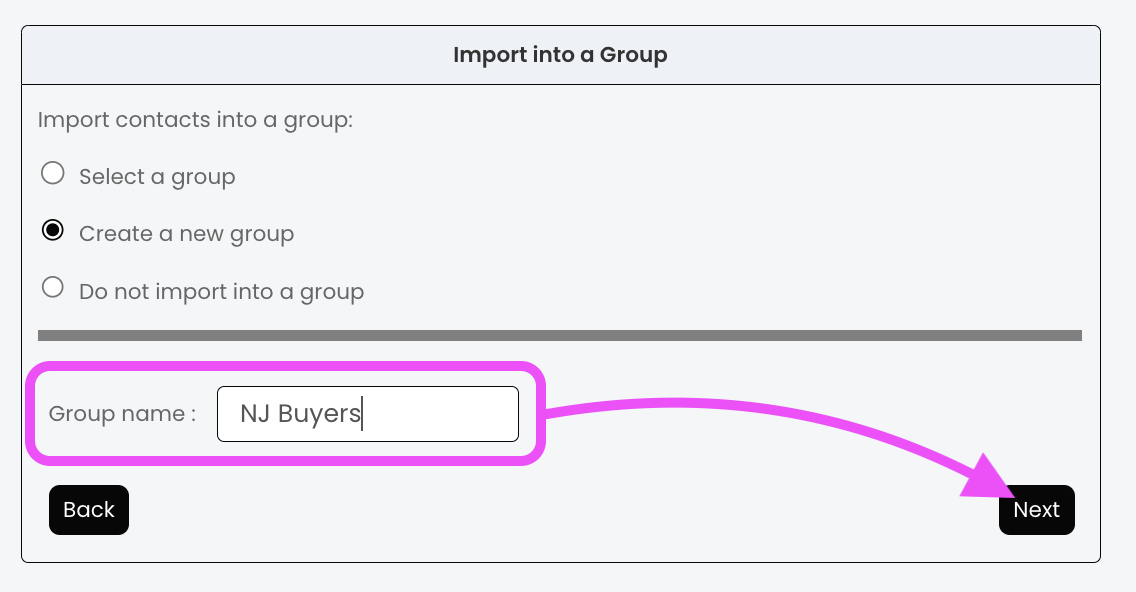
- Create a new group: Type in the name of the new group. Then click Next.
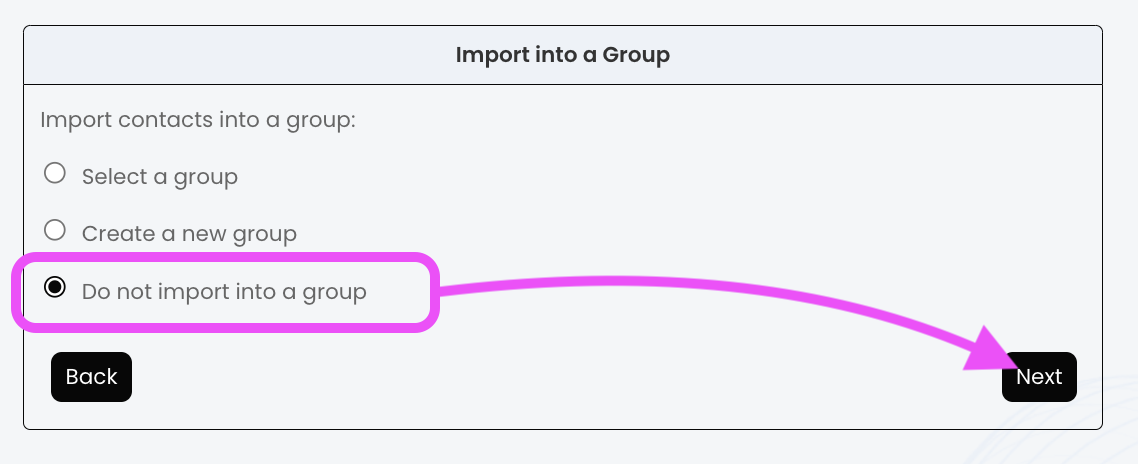
- Do not import into a group: Select this option if you do not want these contacts added to a group. Then, click Next.
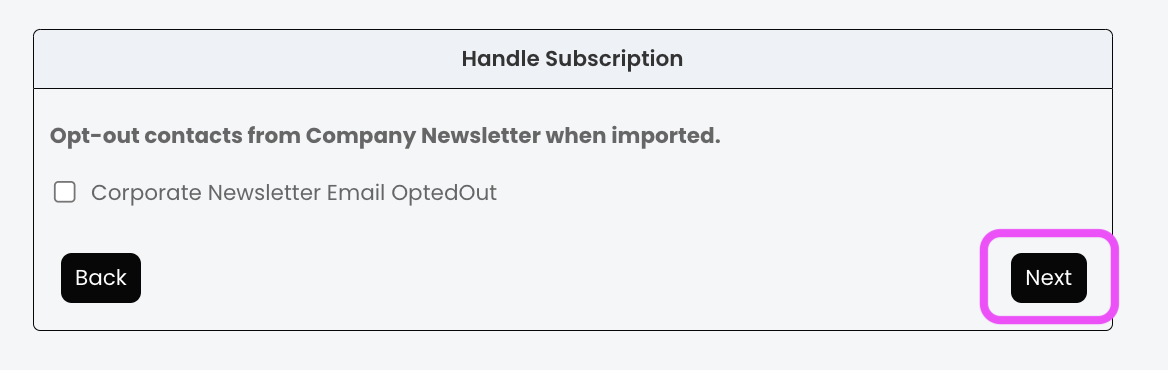
10.) Select whether you want contacts to be unsubscribed from the Company Newsletter. Then, click Next.
- Yes, unsubscribe: Check the box
- No: Leave box blank
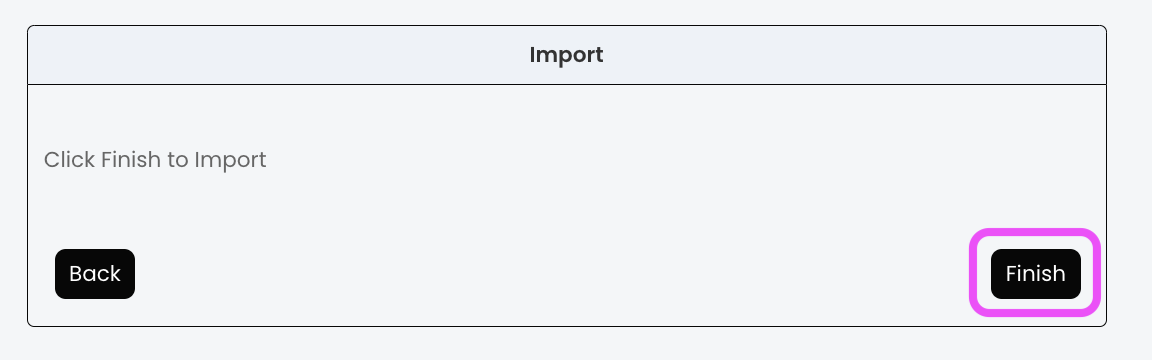
11.) Click Finish to start the import
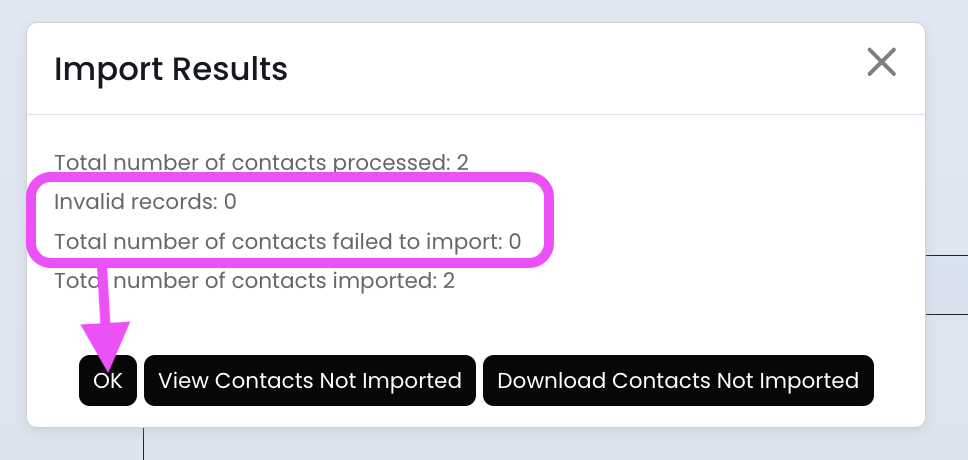
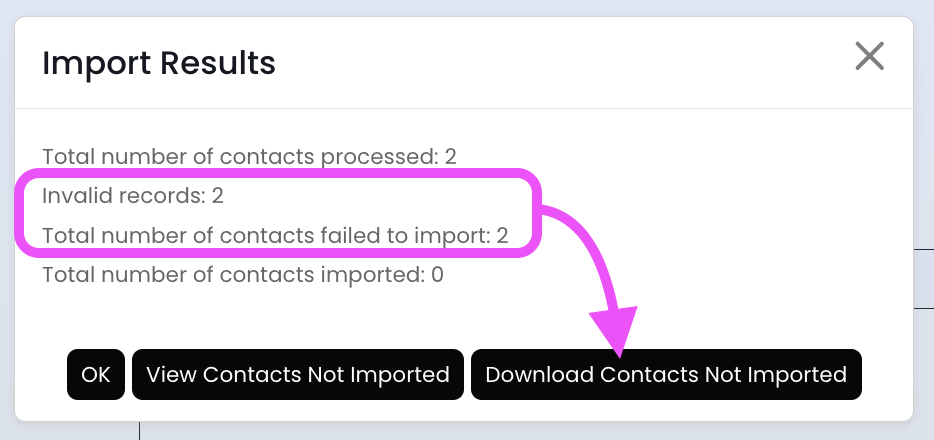
12.) Now you'll receive a status prompt.
- All contacts processed/imported: Click the OK button to exit.
- Invalid Records OR Contacts Failed to Import: Click on the Download Contacts Not Imported button for a list of contacts that fell into these categories.
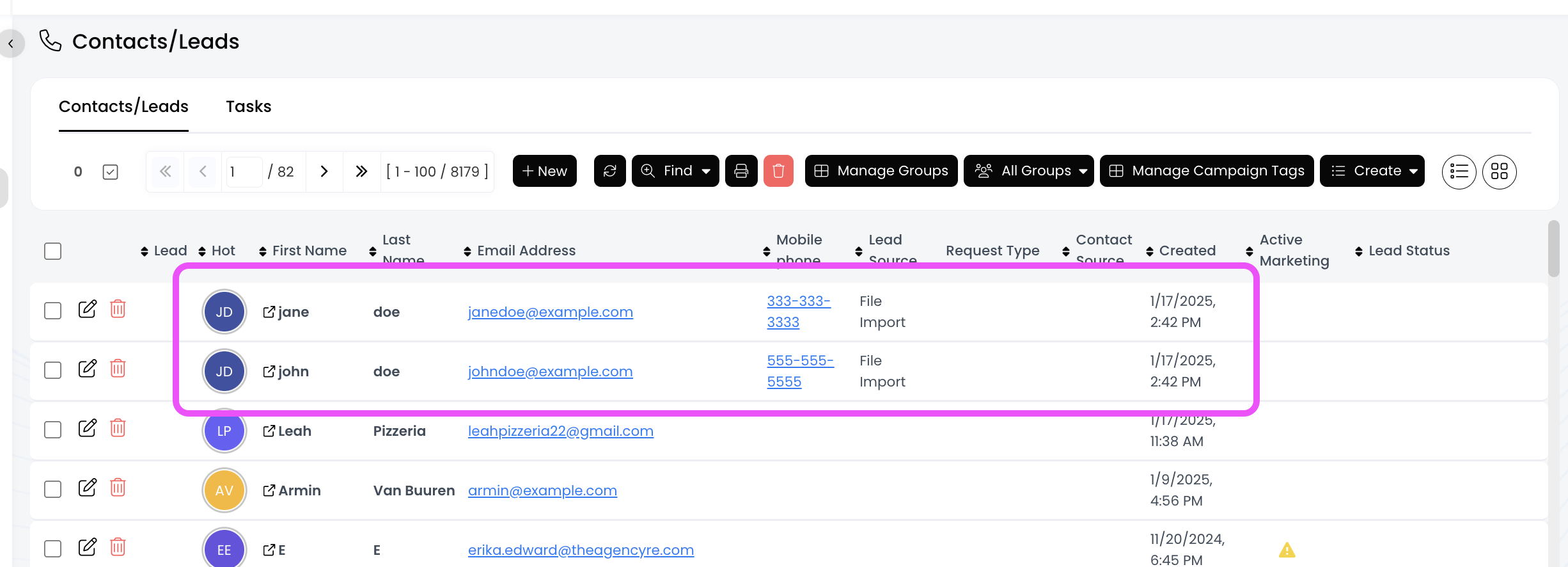
Now these contacts have been added to your APT and can be seen at the top of the list!