


Contacts: Create a New Contact

May 29, 2025
 26
26
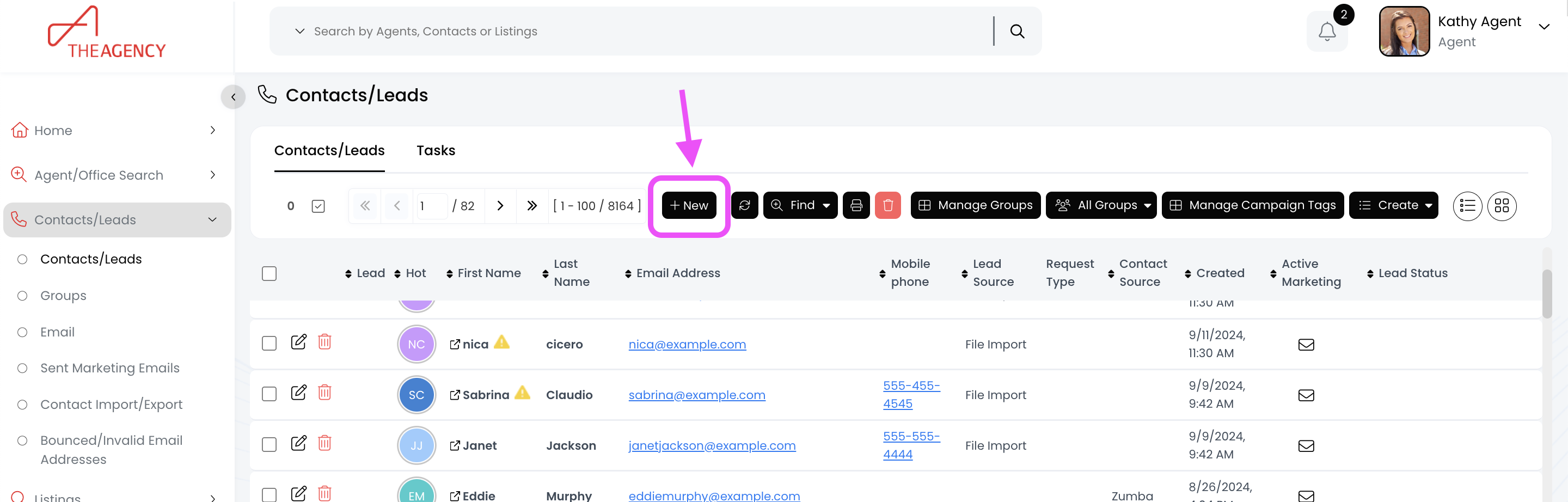
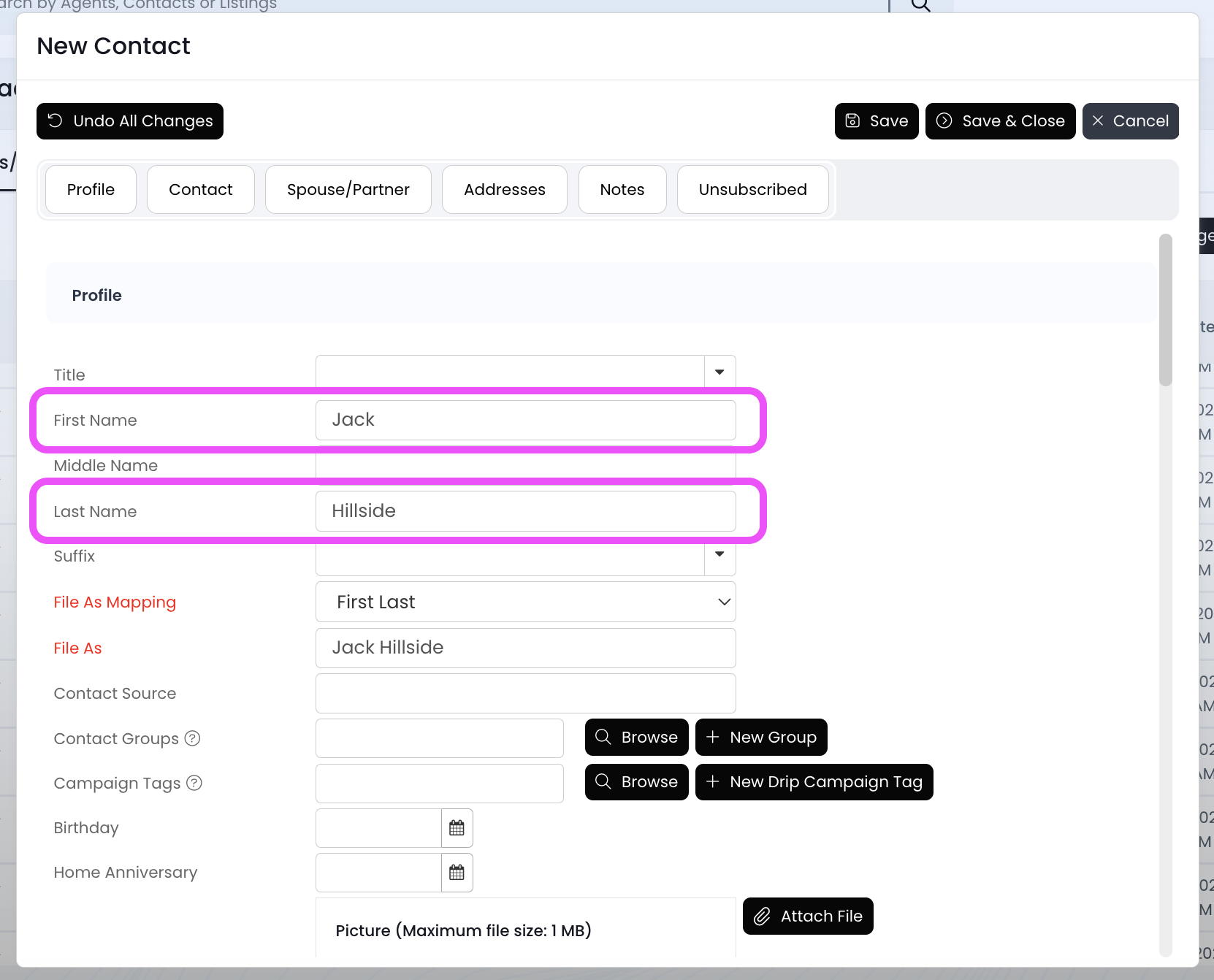
Add a contact in APT by clicking on the + New button from the Contacts/Leads page. You must add either a First Name or Last Name to save the new contact.
📺 Click here to watch the video tutorial 📺
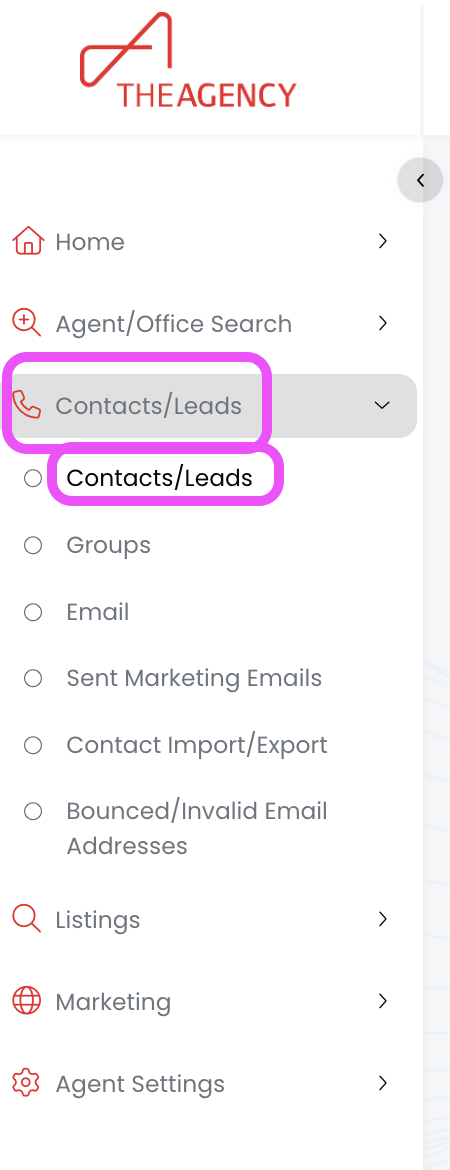
1.) From the left side menu, click on Contacts/Leads, and then click on Contacts/Leads again
2.) Click on the + New button
3.) Add their First Name and/or Last Name. (You won't be able to save the contact if both fields are blank)
4.) Add any additional info (email, phone, address, etc), and then click on Save & Close button
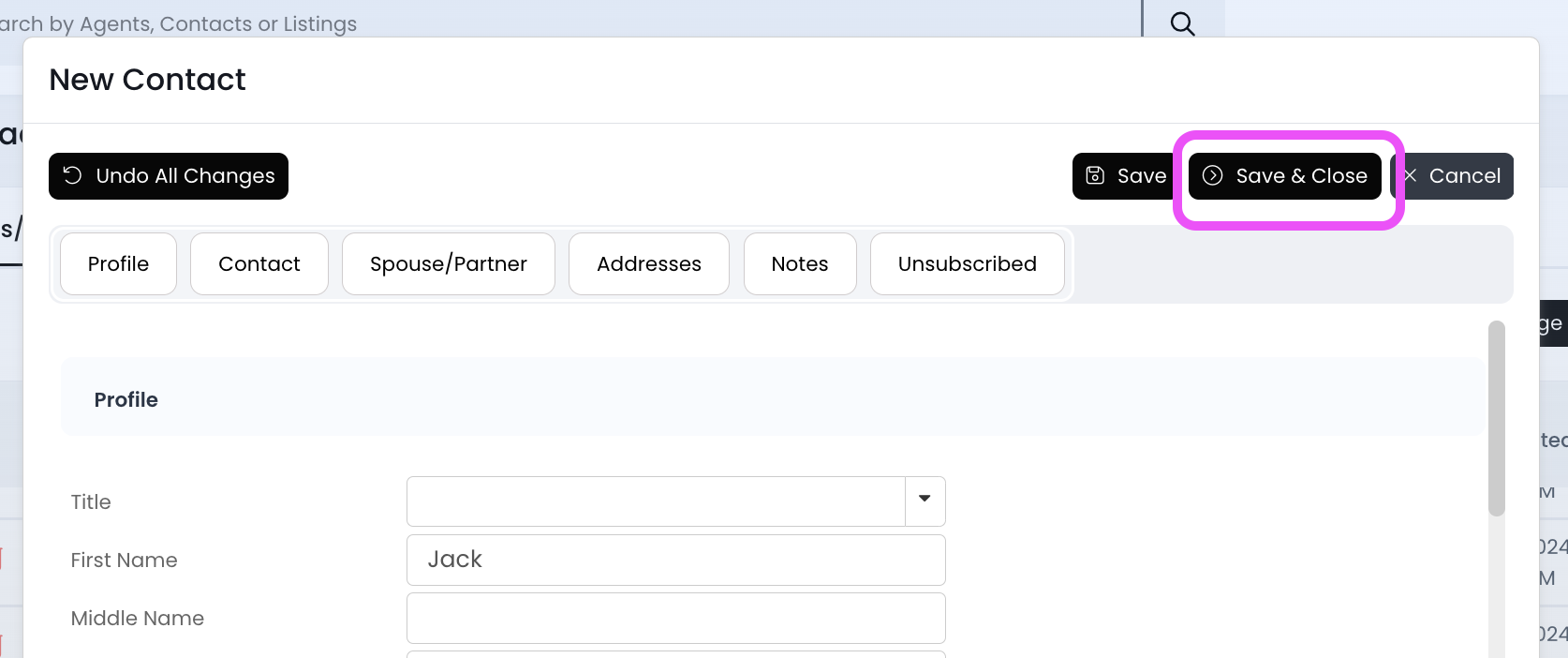
Now this contact has been created in your APT!

