


Pulse: Manage Notification Settings

Apr 01, 2026
 2
2
Purpose
To guide users on how to manage and disable Pulse email and in-app notifications.
Instructions
Option 1: Unsubscribe from Email Notifications
- Open any Pulse email notification.
- Scroll to the bottom of the email and click Unsubscribe.
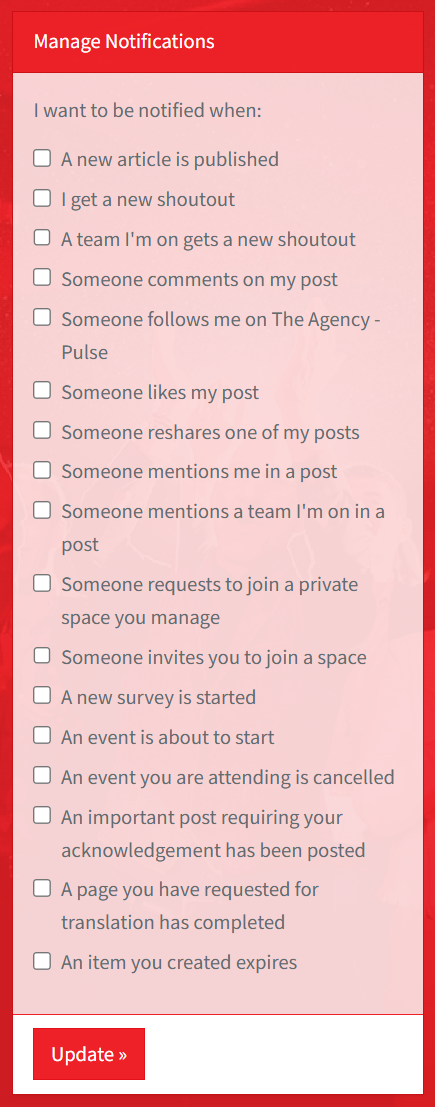
- On the notification settings page, ensure you click Update to save your changes.
Option 2: Update Notification Settings in Pulse
- Log in to Pulse.
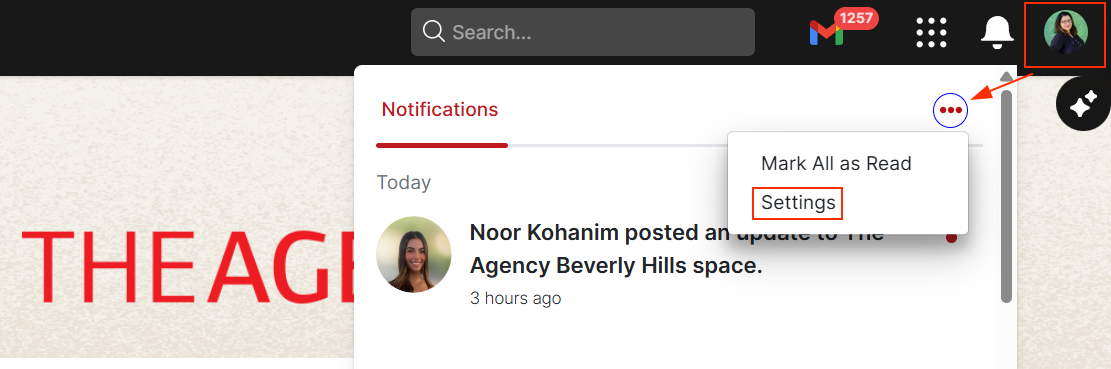
- Click the bell icon (top right navigation).
- Click the three dots.
- Select Settings.
- Adjust notification preferences as needed.
- Click Update to save changes.
Direct Links to Settings

