



 5
5
Purpose
Ensure your rental listings display correctly on IDX/VOW feeds while staying compliant with the FARE Act.
Steps to Configure IDX/VOW Display
-
Open Your Rental Listing
Log in to RealPlus and open the rental listing you want to update. -
Go to Listing Information
Click the Listing Information tab/page. This is the essential page where rental listing settings are managed. -
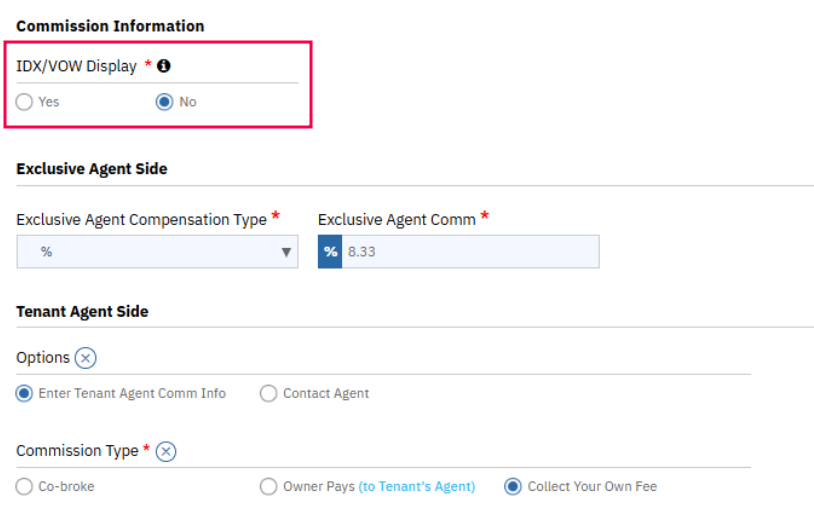
Find the IDX Option
Scroll down to the section around the commission fields near the bottom of the page. -
Select Your Preference
-
Yes → Listing appears on IDX/VOW feeds.
-
No → Listing stays private and is not syndicated.
-
-
Save Your Changes
Click Save before exiting the page to apply your selection.
From REBNY:
To support ongoing compliance with the FARE Act, we are implementing a permanent solution to manage rental listing visibility using the existing field: InternetEntireListingDisplayYN. This setting determines whether a rental listing is eligible for display on public websites (e.g., VOW/IDX).
Effective August 1, 2025

-
If InternetEntireListingDisplayYN=Yes then it will appear on VOW/IDX websites and exclusive brokers website
-
If InternetEntireListingDisplayYN=No then it will ONLY appear on the exclusive broker website.
Important: After August 1, 2025, listings marked as “Participant Only Network” will not be permitted to appear on any public websites. Additional Notes:
-
Coordinate with your Listing Management Provider (LMP) to confirm how this setting appears in your system (field labels may vary).
-
This requirement does not apply to sales listings.
-
This setting is separate from the IDXEntireListingDisplayYN field. For more information on the different types of display rules, please refer to the RLS FAQ.
We remain committed to supporting listing transparency while helping you meet your compliance responsibilities. For more information on the Fare Act please see the FARE Act FAQs. If you have questions or receive a summons under the FARE Act, please notify us at [email protected].

