



 56
56
At the bottom of every eBlast template, you’ll see your headshot and contact details. This information automatically syncs from APT and doesn’t need to be edited. To preview how it will appear, click the “Preview” button in the top-right corner of your eBlast.
If you’d like to display a second agent (e.g., for team marketing), follow these steps:
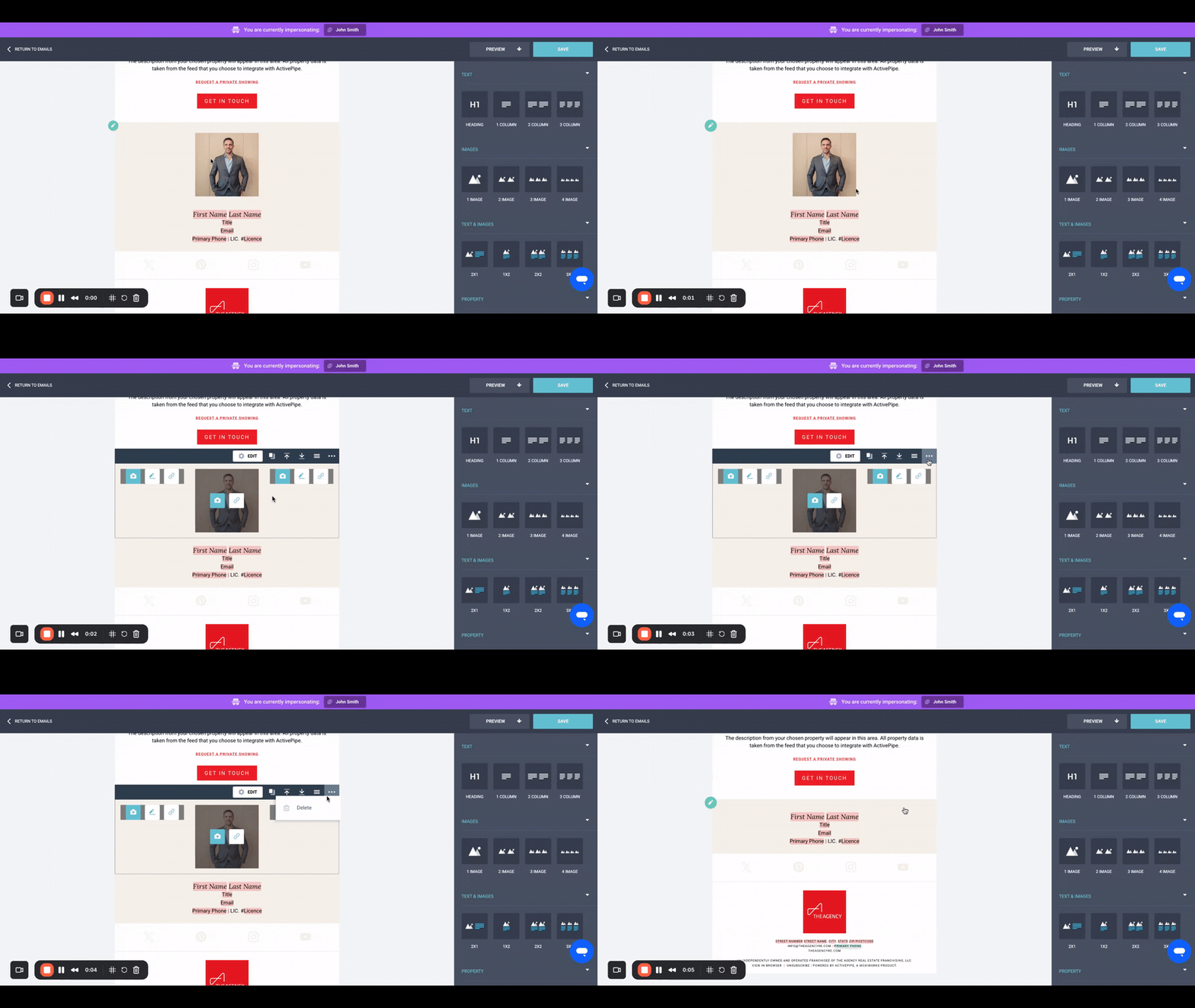
1. Delete your headshot image panel
-
Click on the headshot panel and delete it.
2. Edit the agent info panel
-
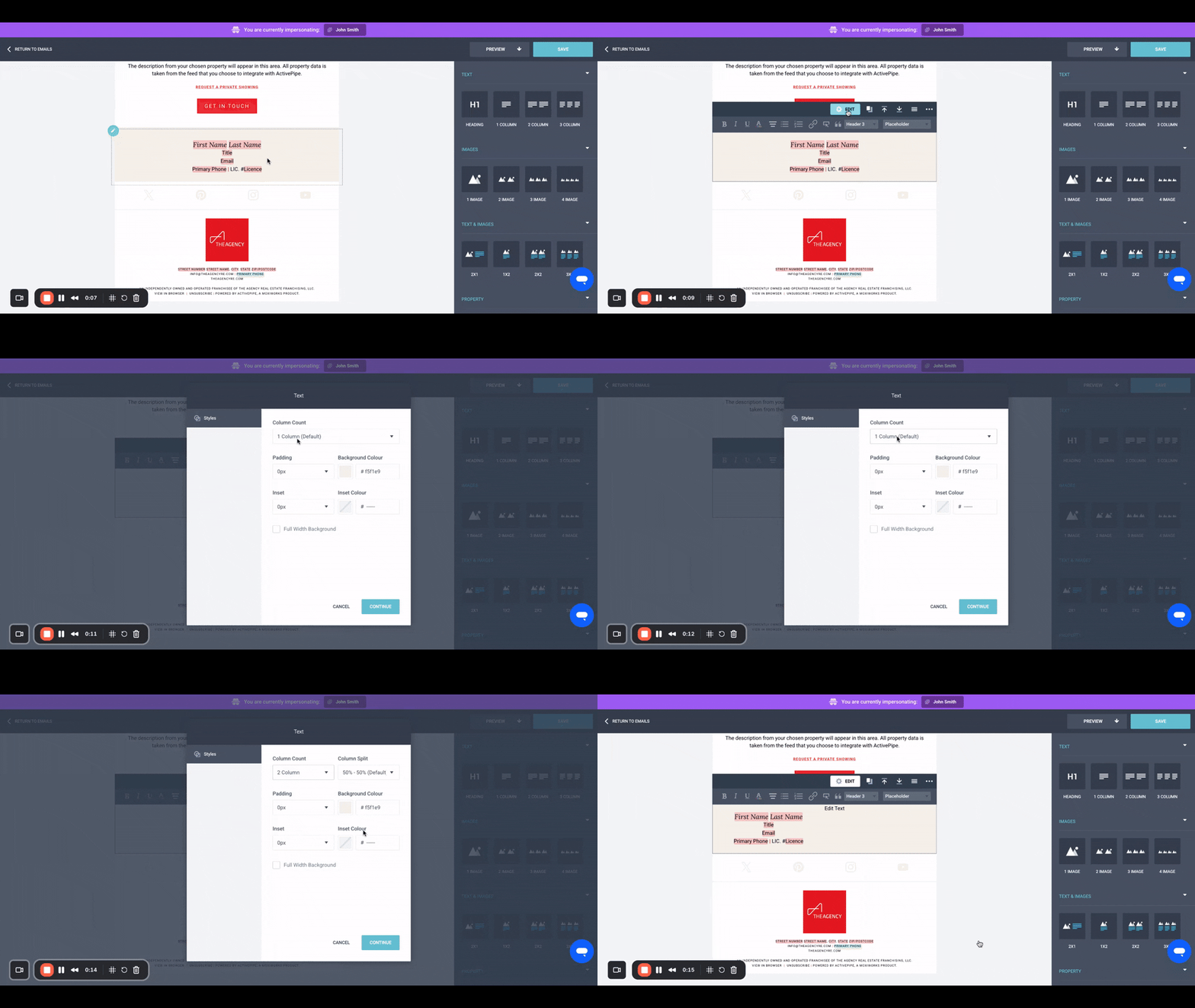
Click Edit on the agent info panel.
-
In the Styles tab, change the column count from 1 to 2, then click Continue.
3. Add the second agent's info
-
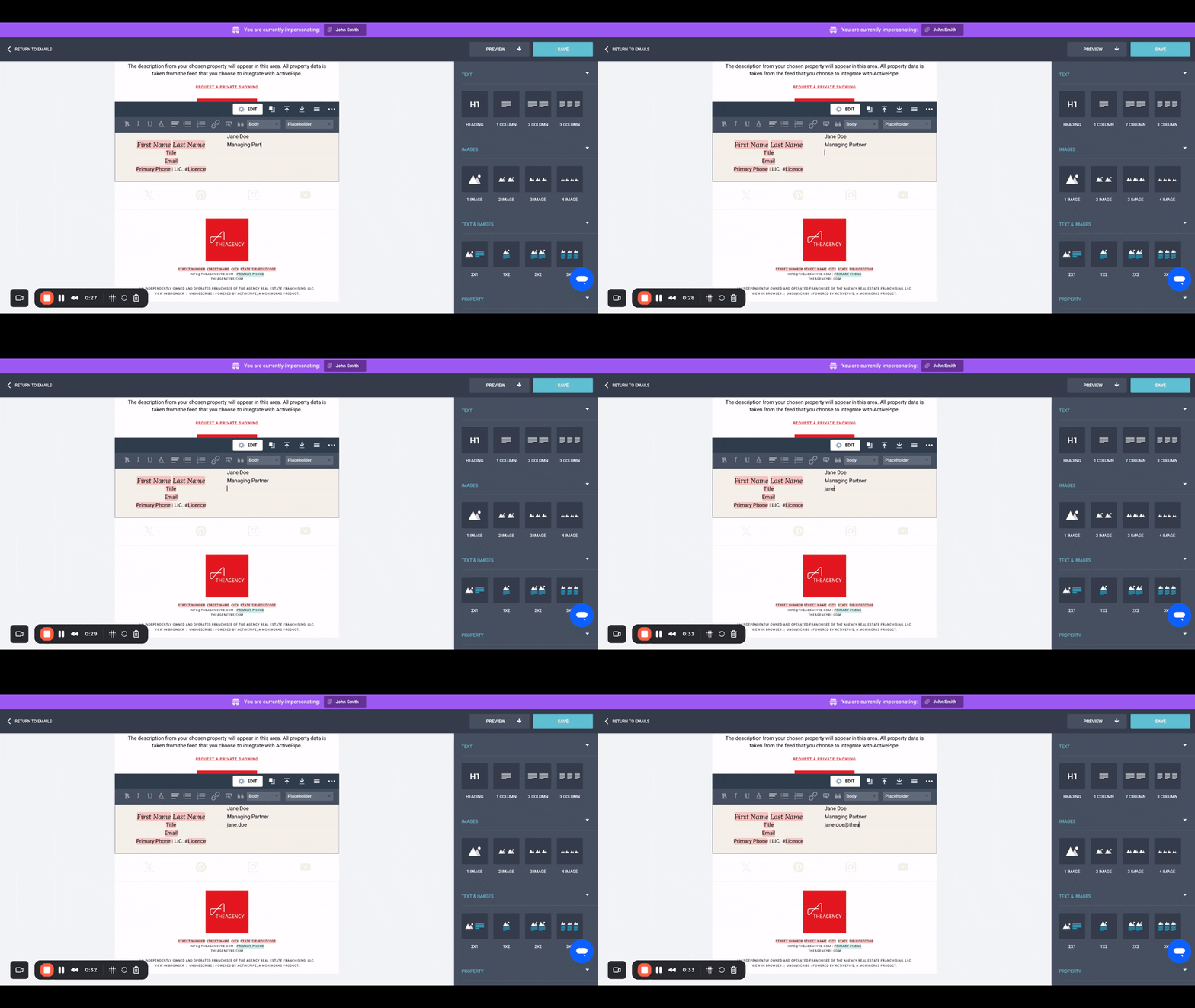
Your draft will now show two columns:
-
The left column contains your synced contact info (leave this as-is).
-
The right column is blank—manually add Agent #2’s details here.
-
4. Format the second agent’s info to match the original
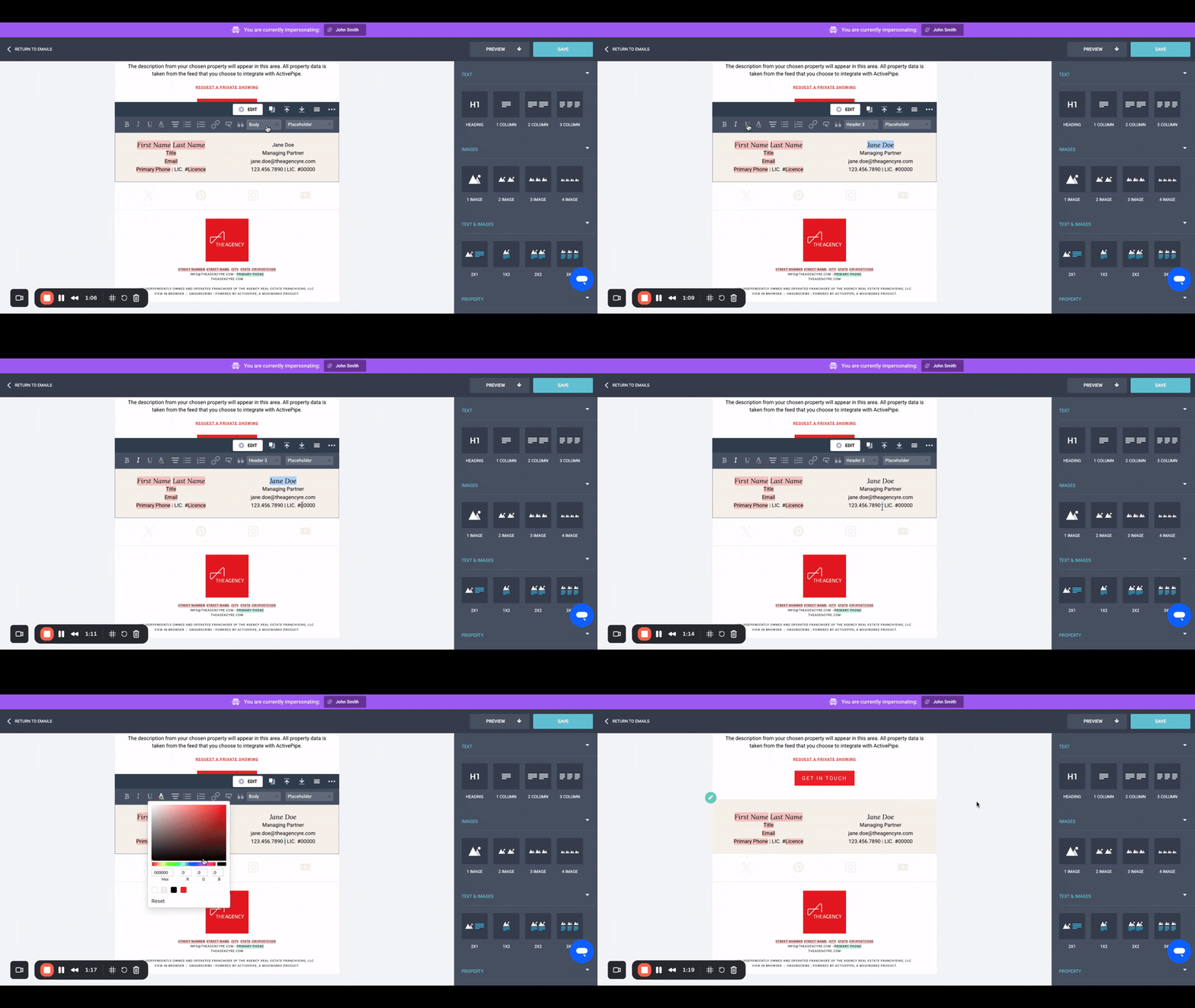
Use the following style and alignment:
-
Full Name – Header 3, italics, center aligned
-
Title – Body, center aligned
-
Email Address – Body, center aligned
-
Phone | LIC. # – Body, center aligned, use a red vertical pipe between the phone and license
5. Preview your eBlast
-
Click Preview to make sure everything looks correct. Your original agent info in the left column will still auto-sync from APT.
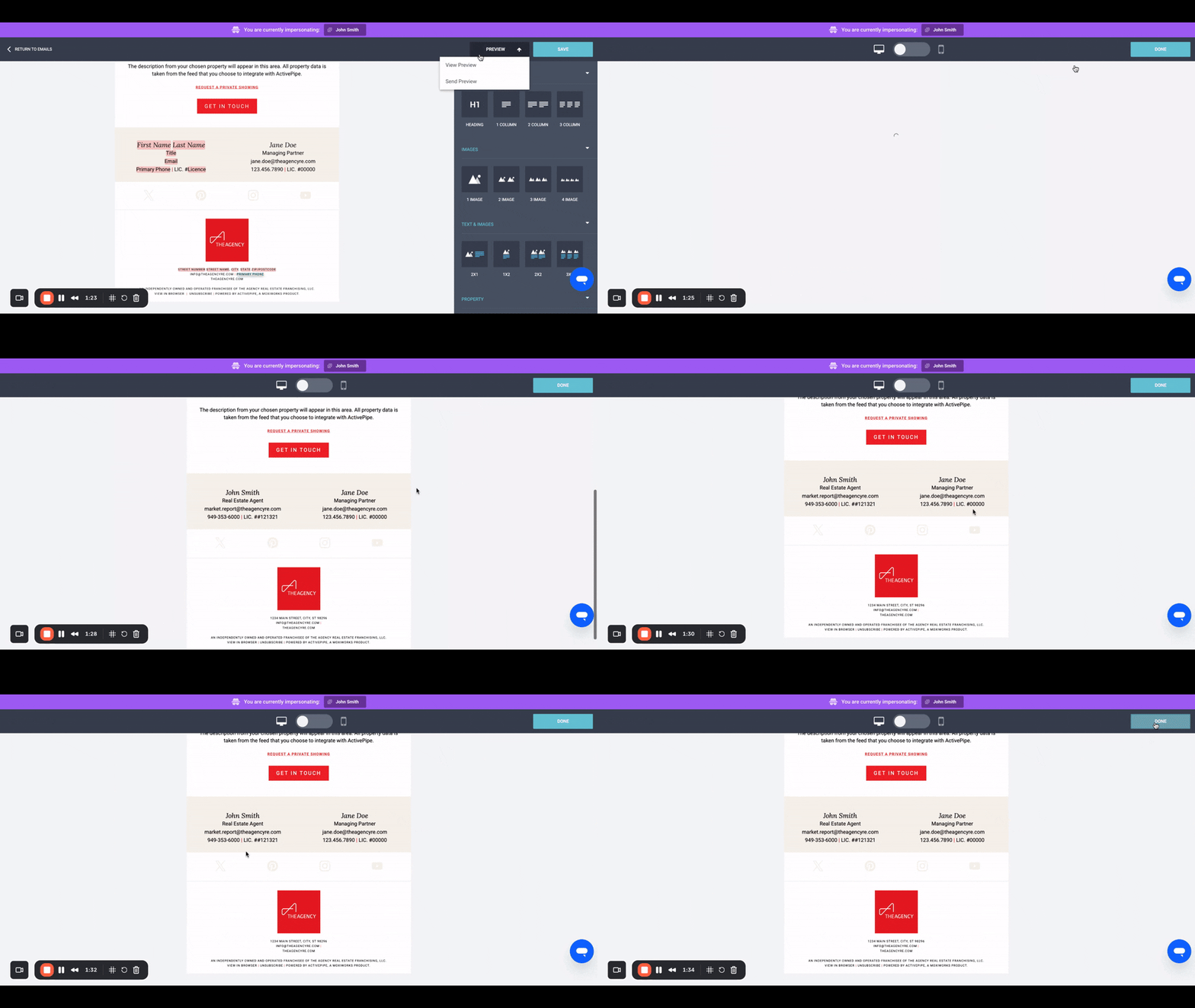
If everything looks good, go ahead and send your eBlast as usual.

