10
10
Use the Show/Hide feature to hide a past transaction on your agent page! You'll need the MLS name and number, which can be found on the listing page.
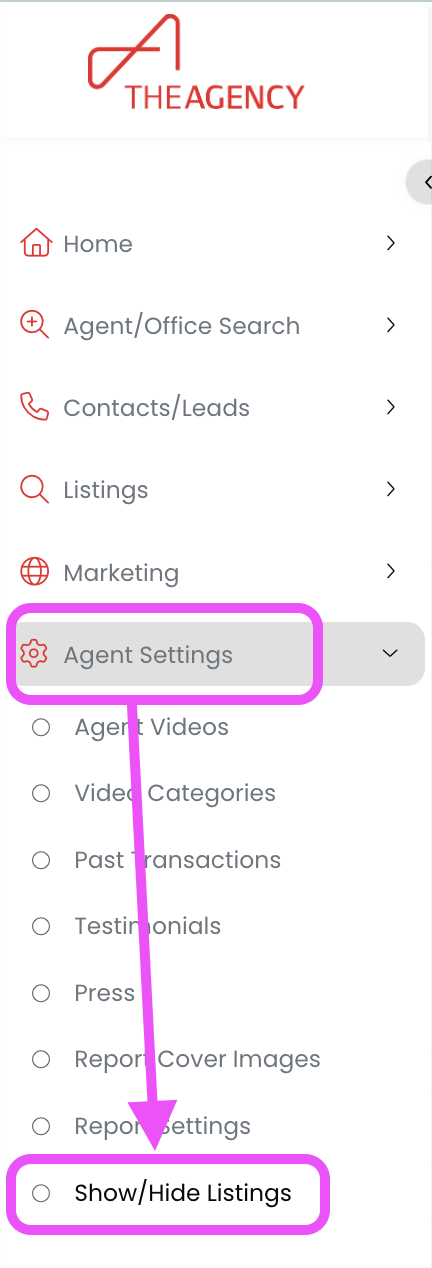
1.) Click on the Agent Settings tab, then click on Show/Hide Listings
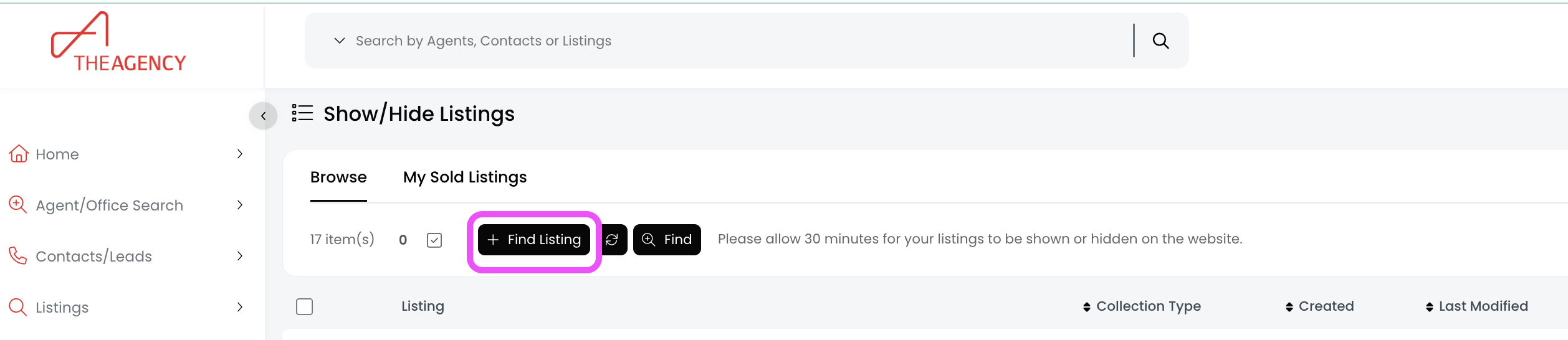
2.) Click on the + Find Listing button
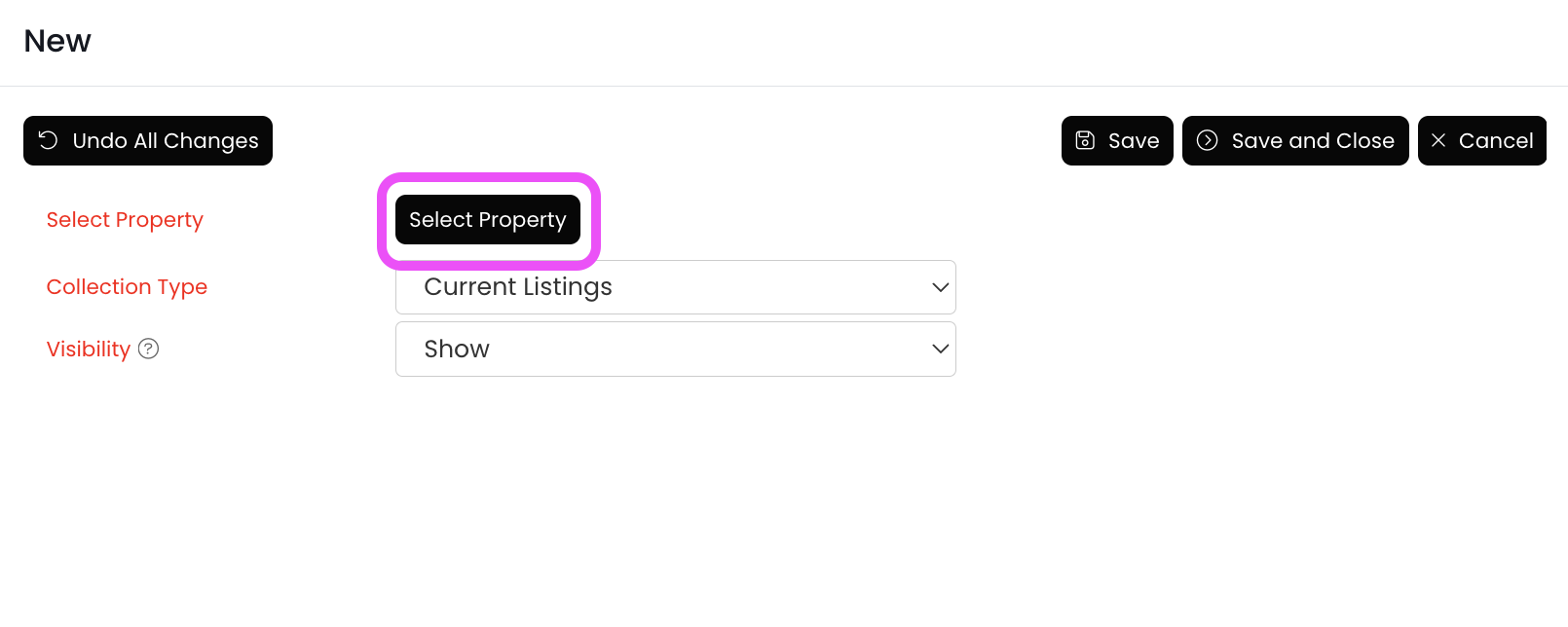
3.) Click on the Select Property button
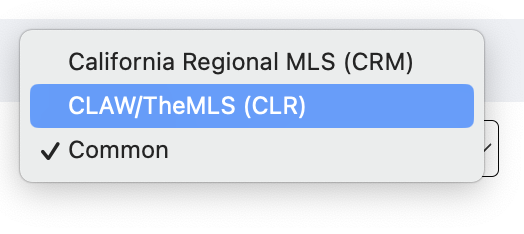
4.) Click on Common to expand additional MLS boards, and then select the MLS name that this listing is feeding from
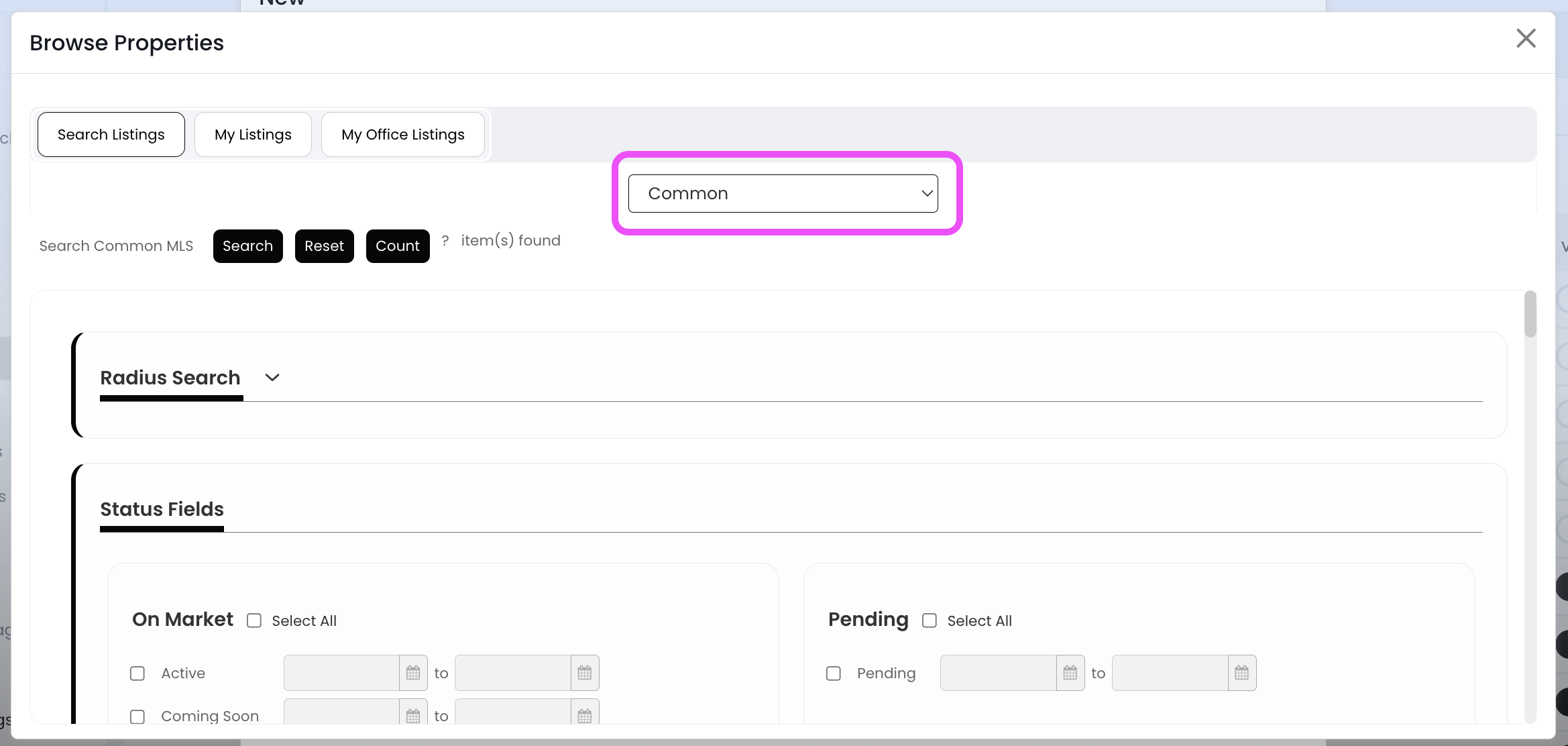 .
. 
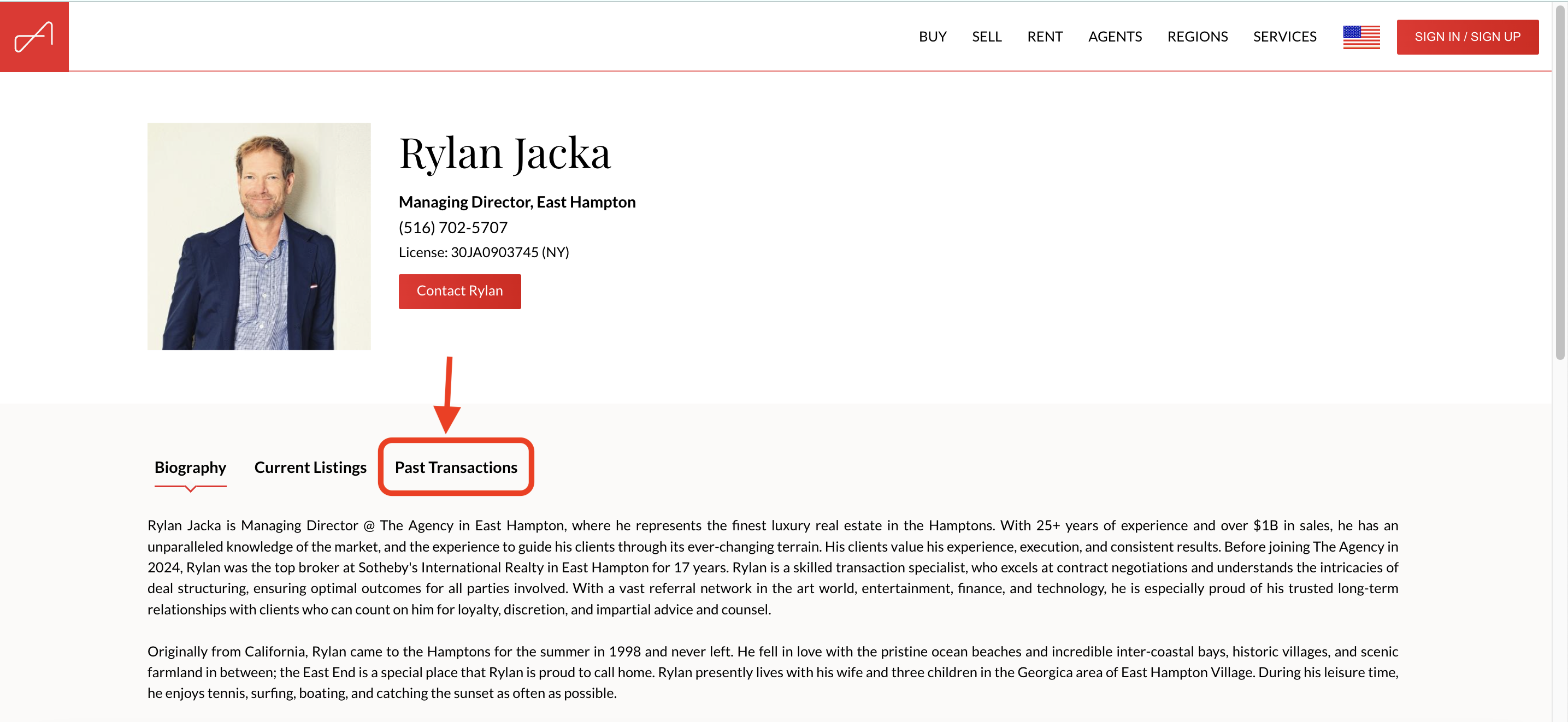
5.) Go to your agent page on the website, and then click on the Past Transactions tab
6.) Find the transaction you want to hide and click on it
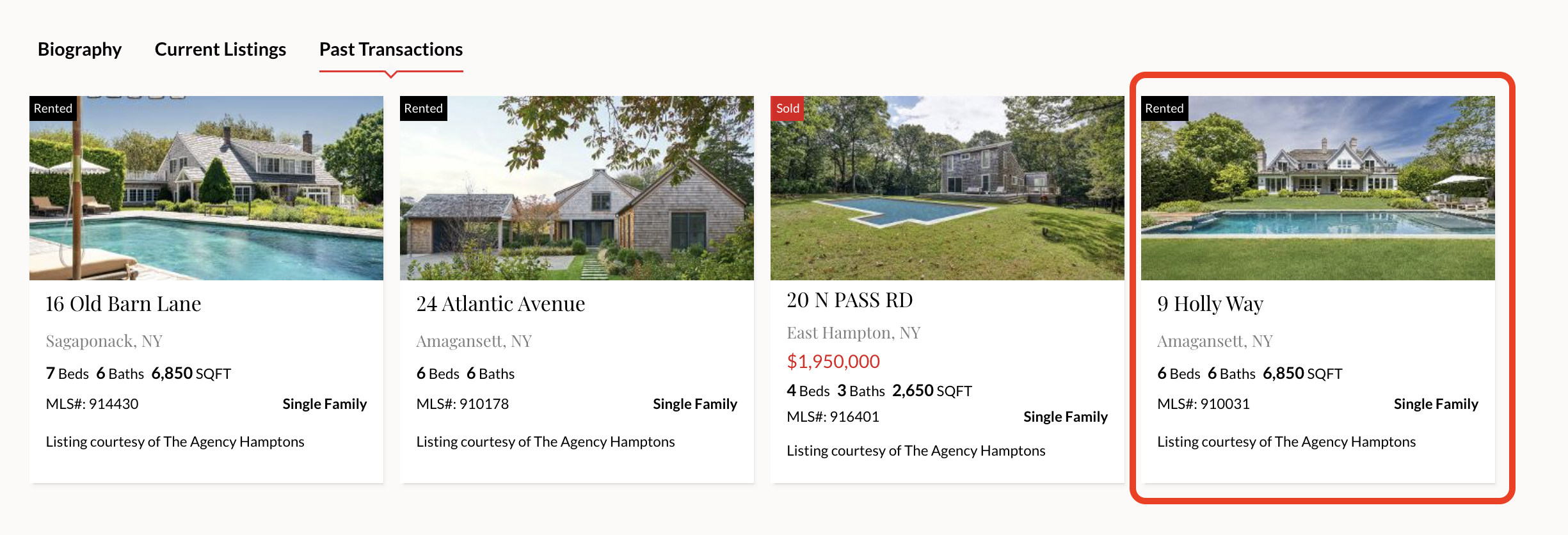
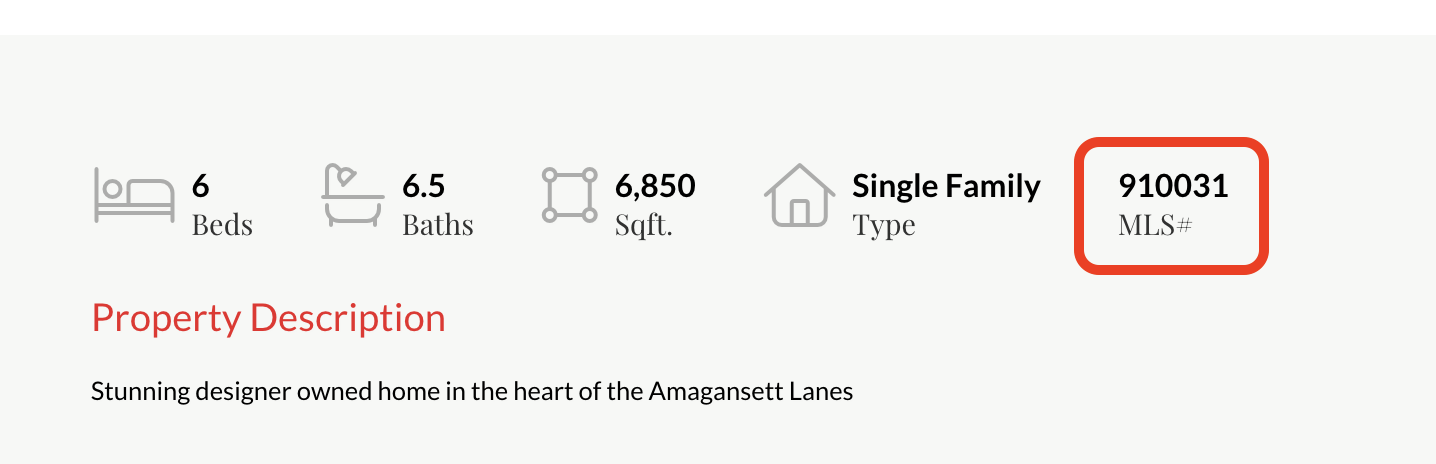
7.) Copy the MLS # (located under the photos)
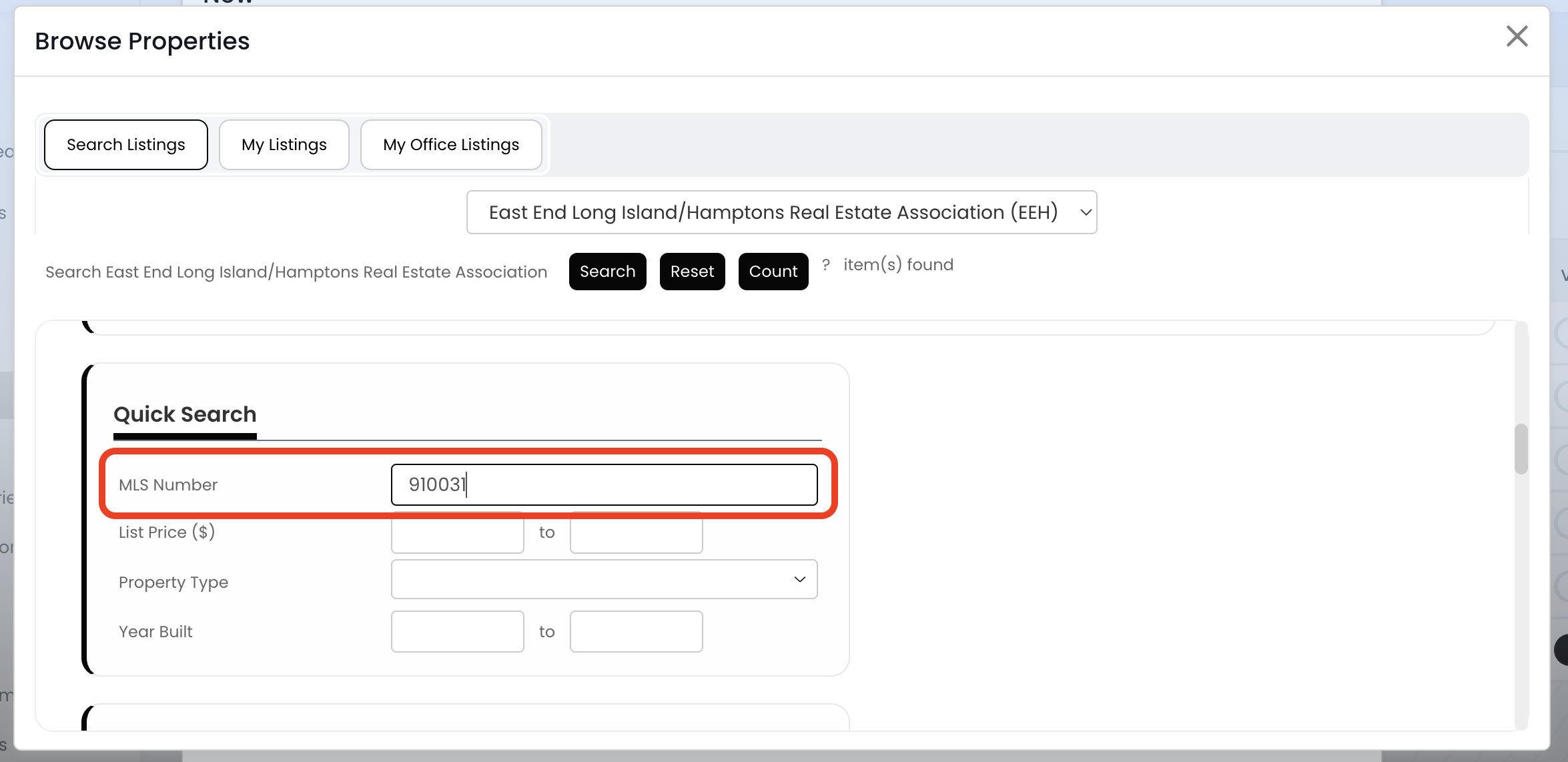
8.) Go back to APT, and paste that number into the MLS Number field. Then click the Search button (at the top)
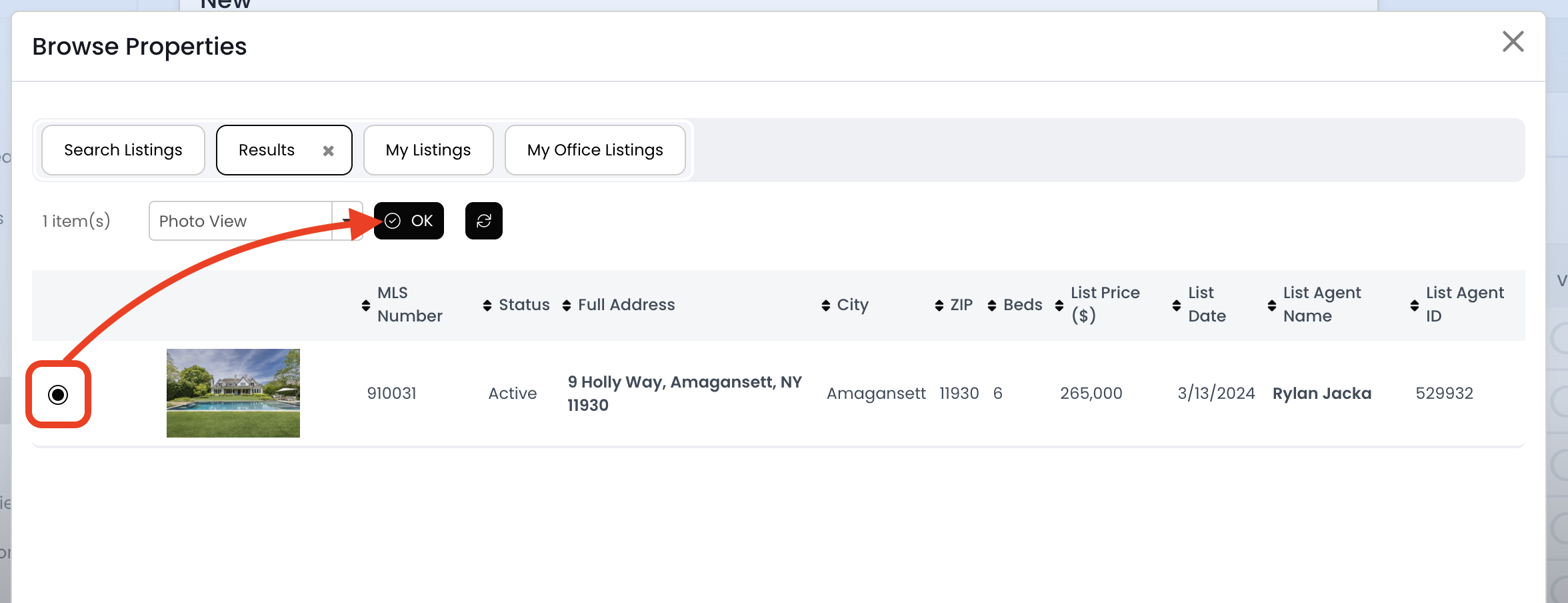
9.) Select the proper listing by clicking inside the circle towards the left, and then click on the OK button
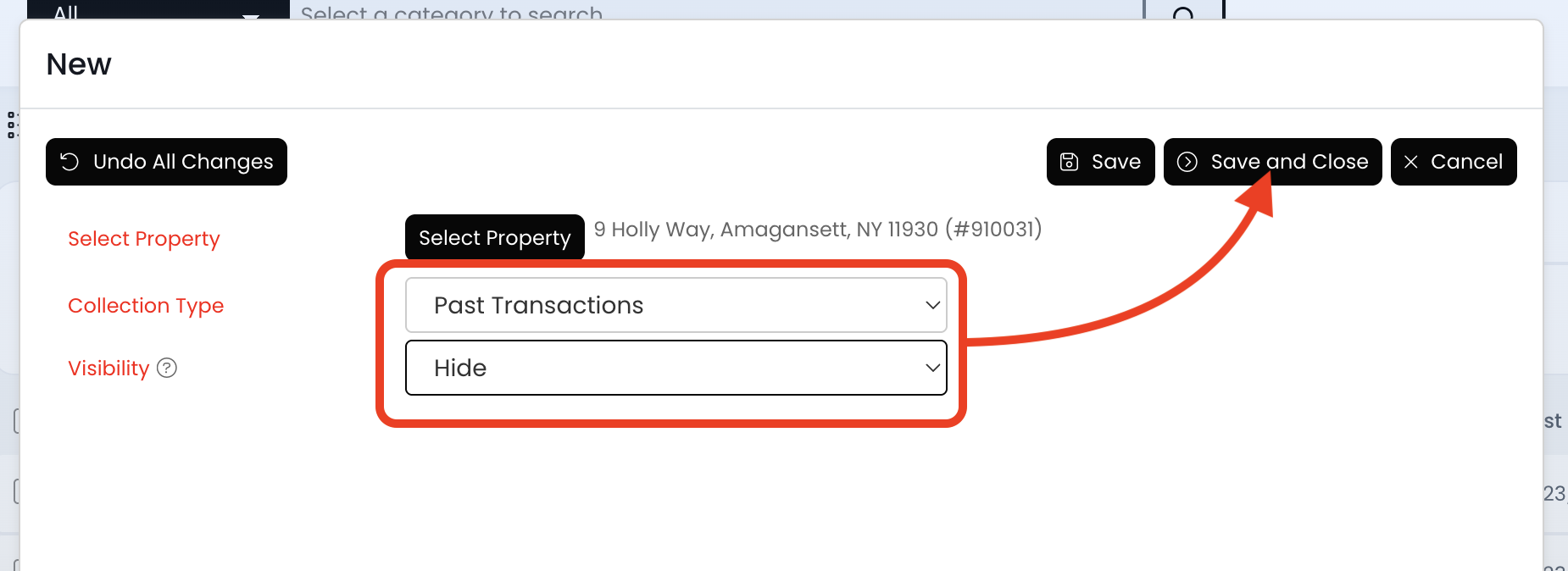
10.) Set the "Collection Type" field to Past Transactions. Set the "Visibility" field to Hide. Then click on the Save and Close button