



 45
45
Before you begin, ensure you have a unique team email address. Team accounts cannot use an individual agent’s email. If you don’t already have one, our Tech Support team can help set up a new team email address/distribution list.
Creating a Team Account Involves Three Steps:
- Create the Agent Team account
- Add Team Members
- Assign Access Roles to Team Admins/Members
Creating the Team page
-
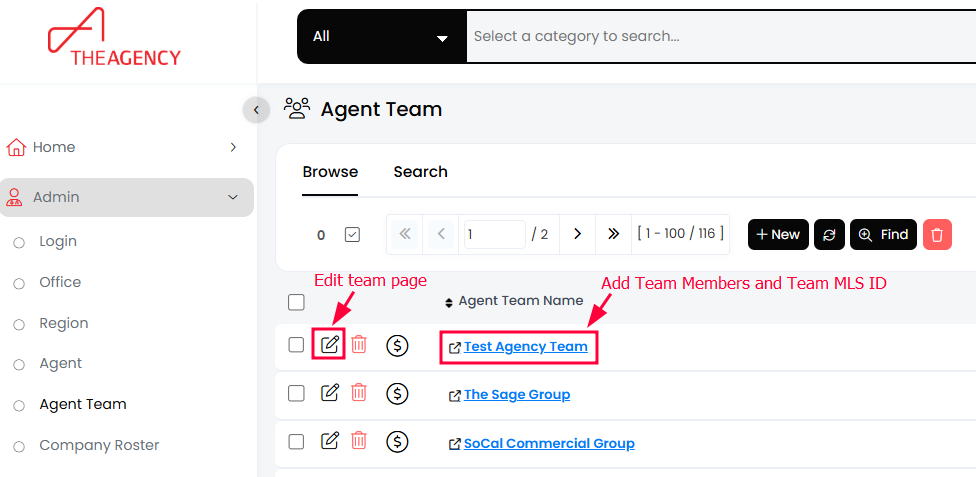
Reach out to [email protected] to request the initial creation of your team page.
-
Once you receive confirmation that the page has been created, complete the team profile and set Display on Website to Yes.
Add Team Members and Team MLS ID
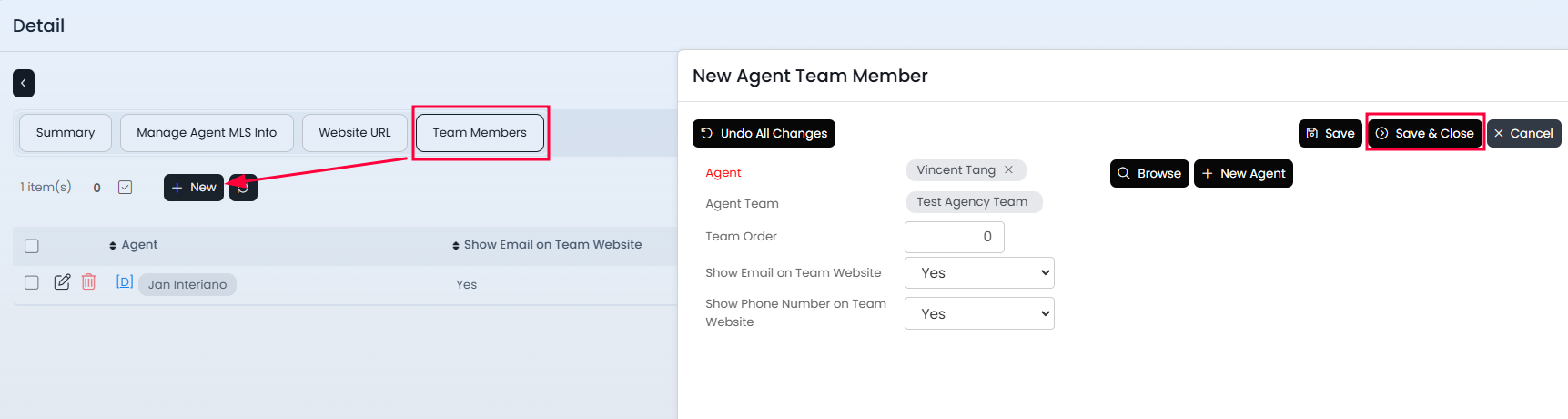
Once your team account is created, you can add team members. Only agents added here will appear on the team page on the website.
-
Click on the Team Name to open the team member list and additional options.
-
Go to the Team Members tab and add each agent who is part of the team.
-
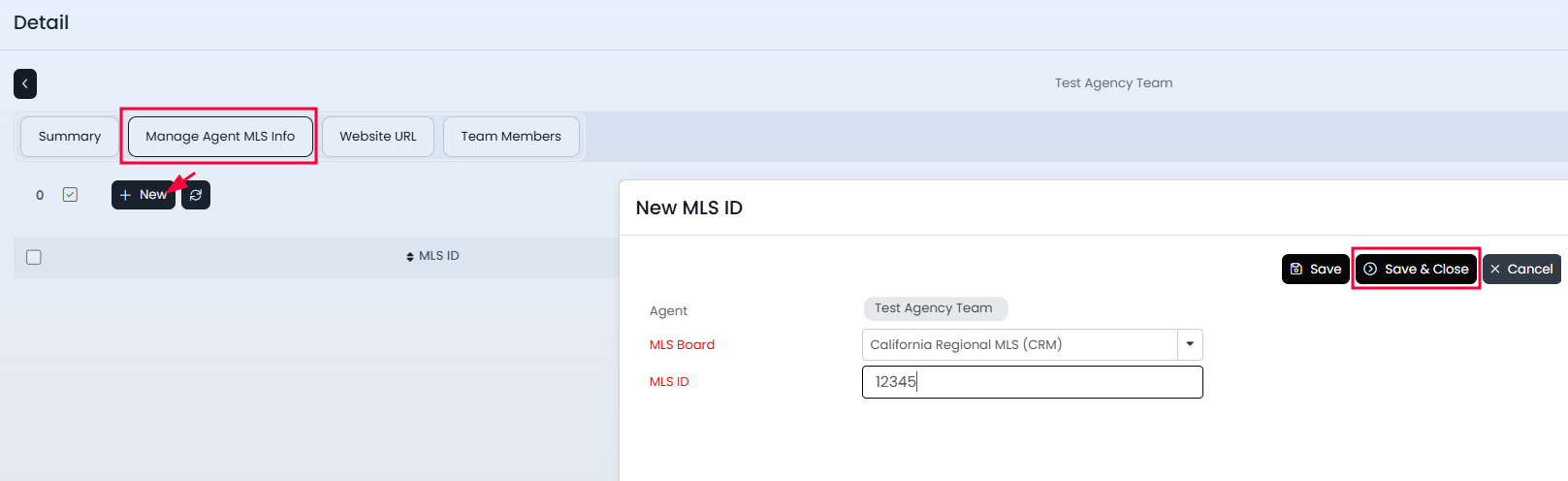
If your team lists properties in the MLS under a team account, add the team MLS ID under the Manage Agent MLS Info tab.
Assign Access Roles to Team Members
With your Agent Team page created and team members added, you can now grant access to the Agent Team account in APT.
Role Types:
-
Team Member — Can log into the team page to view team contacts from a desktop computer.
-
Team Admin — Can manage the Agent Team page details and view team contacts from both a desktop computer and The Agency CRM App.
How to Assign Roles:
-
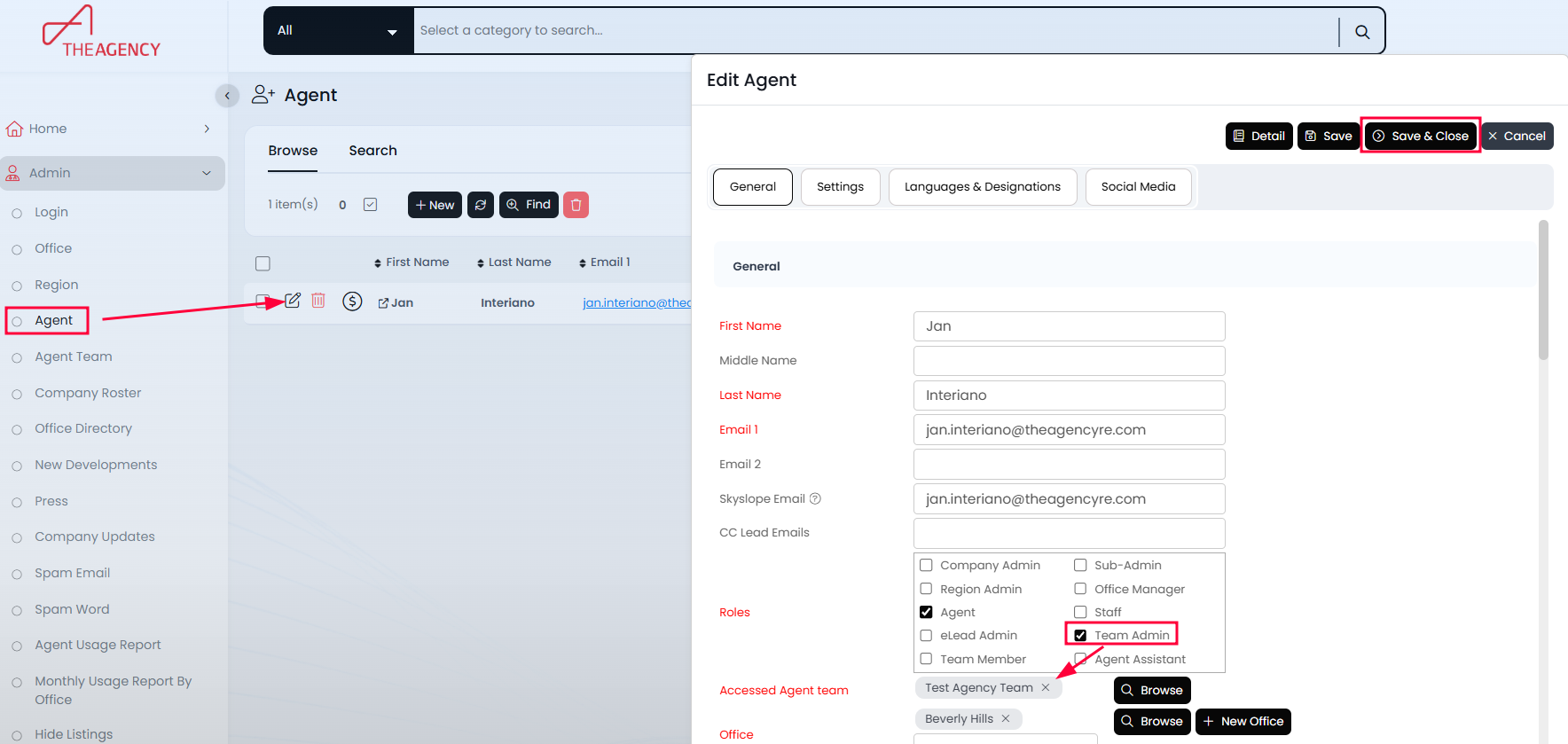
Navigate to Admin → Agent.
-
Find the agent you want to update and click the Edit (pencil) icon.
-
Under the team roles section, select either Team Member or Team Admin and specify which team they should have access to.
Important Note:
Agent Teams in APT are for use in APT and on the website only.
If you’d like to send eBlasts under a team account in ActivePipe, please contact [email protected] for available options.

