4
4
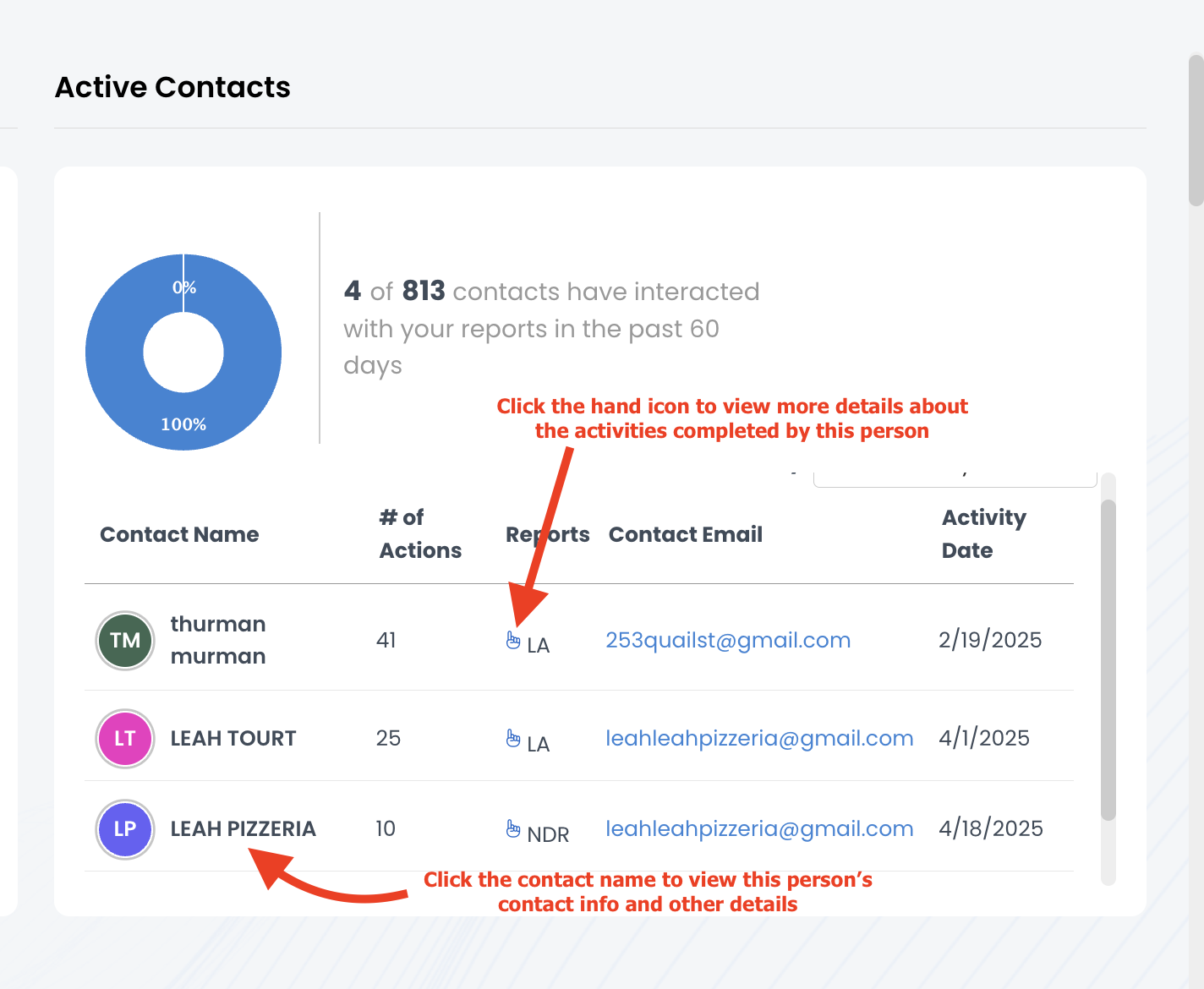
If you've created reports for multiple contacts, you can find the metrics for all reports in one place! This information can be found under the Activity & Tracking Dashboard in the "Active Contacts" section.
Any contacts who have interacted with a report in the last 60 days can be found in this chart. The most recent engagements are listed towards the top, and you can click on the magnifying glass icon to view more details for that particular person and report. If you don’t see any details in this section, none of your contacts have opened any reports in the past 60 days.
To find these metrics:
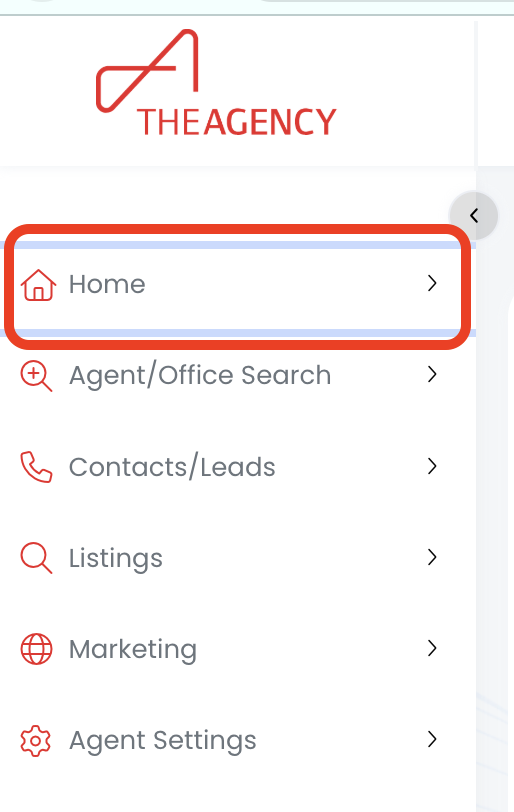
1.) Click on the Home menu
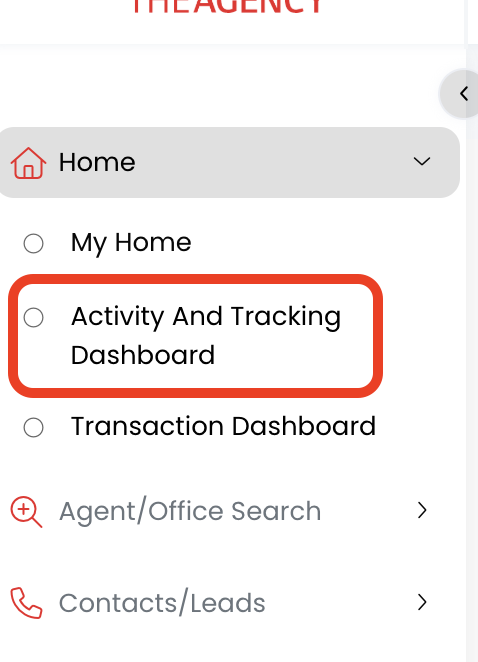
2.) Click on the Activity & Tracking Dashboard option
3.) Look for the Active Contacts section (2nd chart displayed on the dashboard)
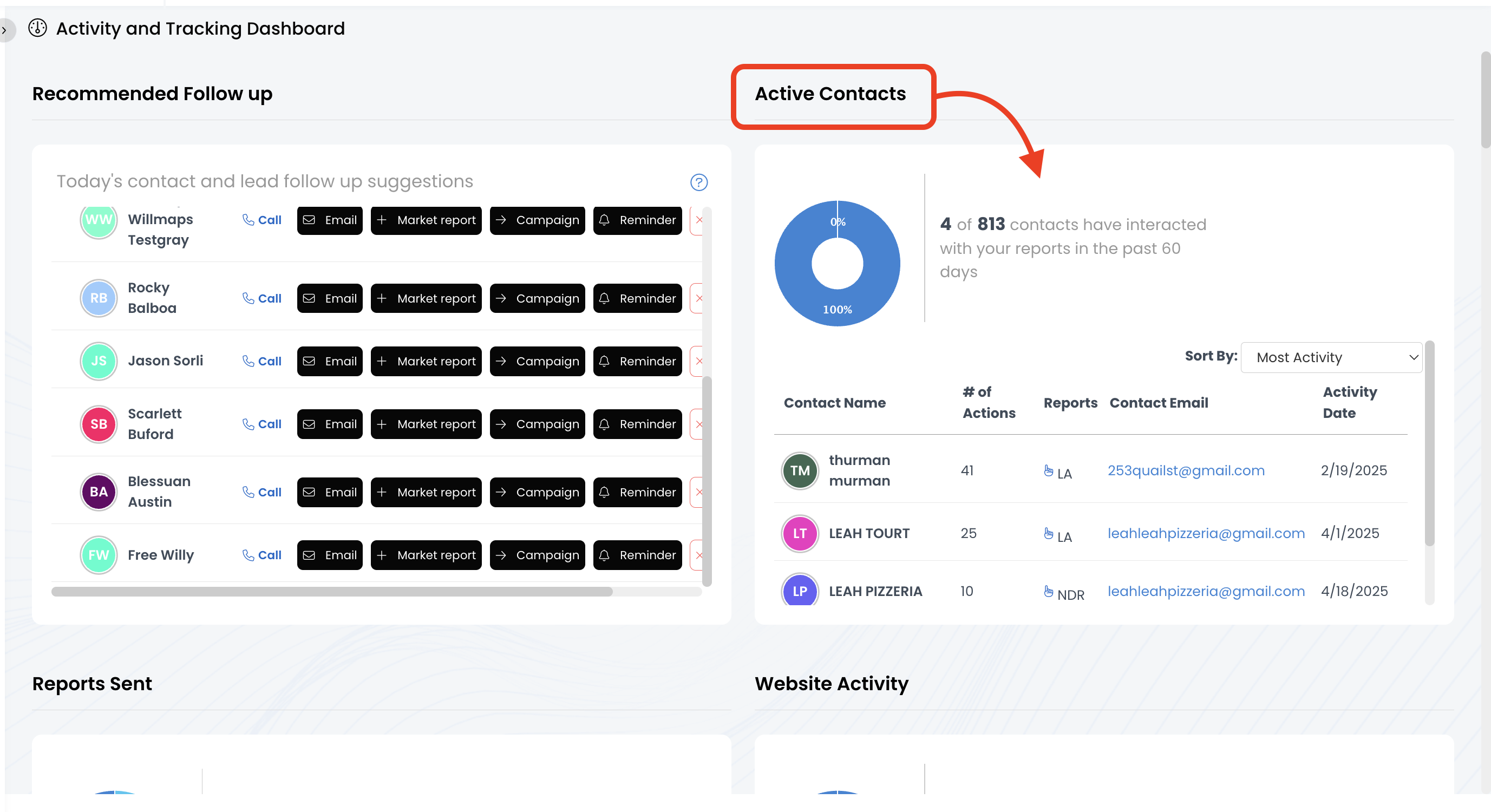
4.) Now you can see all the contacts who have been recently interacting with any reports you've created! Click on the hand icon to view specific details about the activities completed on this report.
- Contact Name: The contact's first & last name. Clicking on their name will redirect you to their contact details page.
- # of Actions: Number of times this person has interacted with a report (viewing, clicking, etc.)
- Reports: Type of report.
- LA = Listing Alert
- MR = Market Report
- QMR = Quarterly Market Report
- NDR = Neighborhood Detail Report
- Contact Email: The contact's email address
- Activity Date: Date this person completed an activity