



 4
4
The campaign tag feature manages the contacts on a drip campaign. Each drip campaign is associated with a unique campaign tag, which must be added to all your contacts to initiate the drip campaign.
📺 Click here to watch the video tutorial 📺
1.) Click on the Contacts/Leads menu
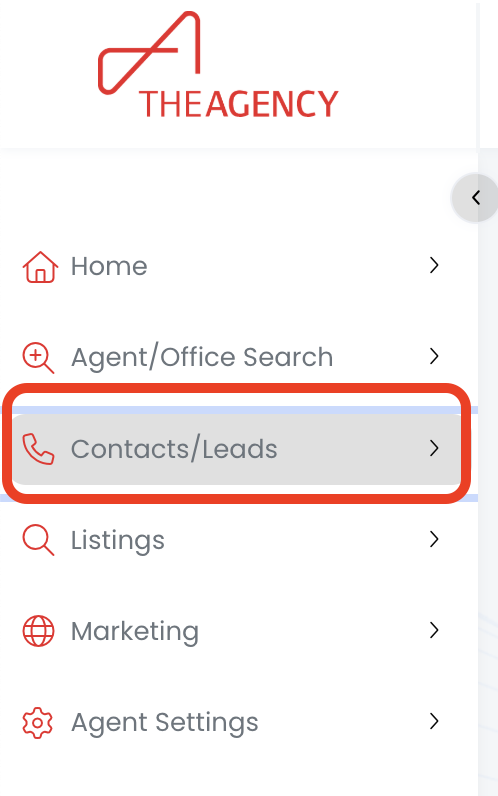
2.) Click on the Contacts/Leads option
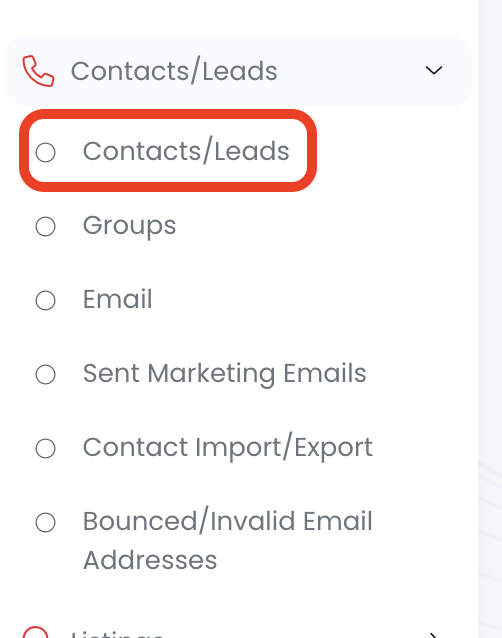
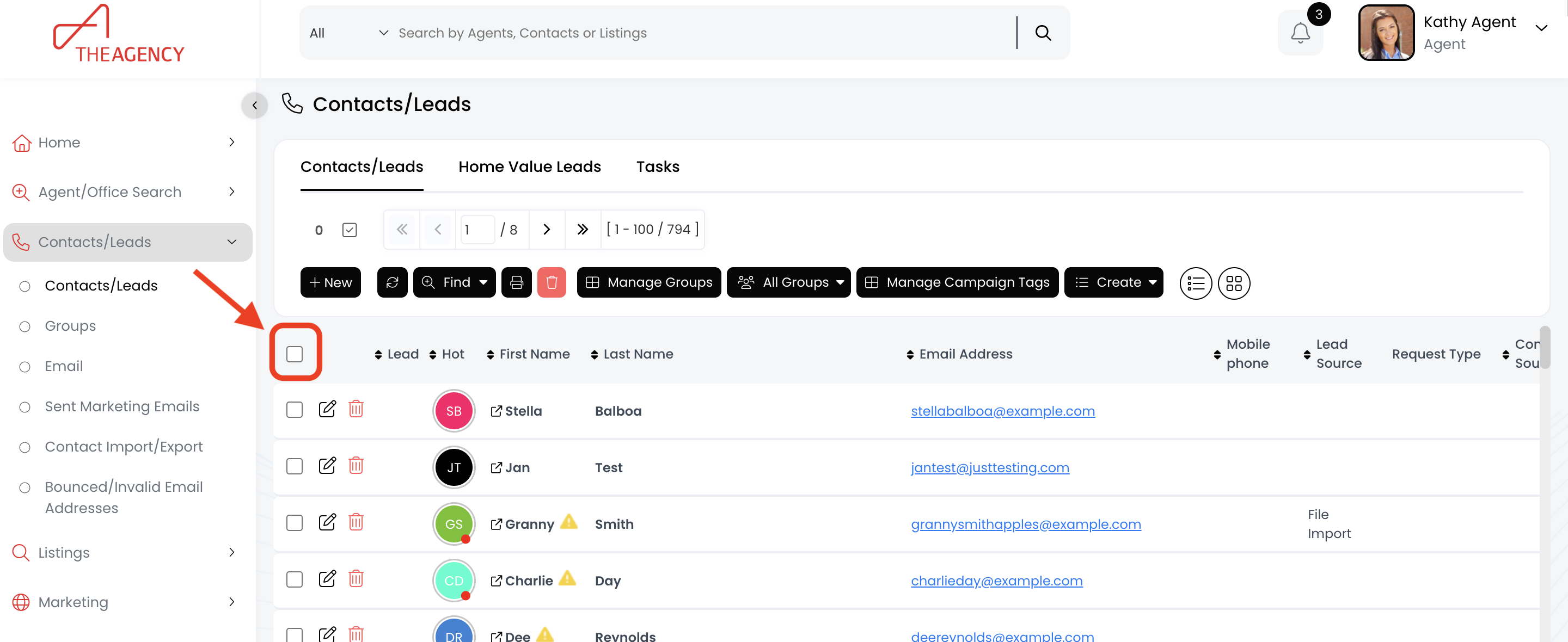
3.) Click the box at the top left to select all the contacts on this page
4.) Click on the Select All button
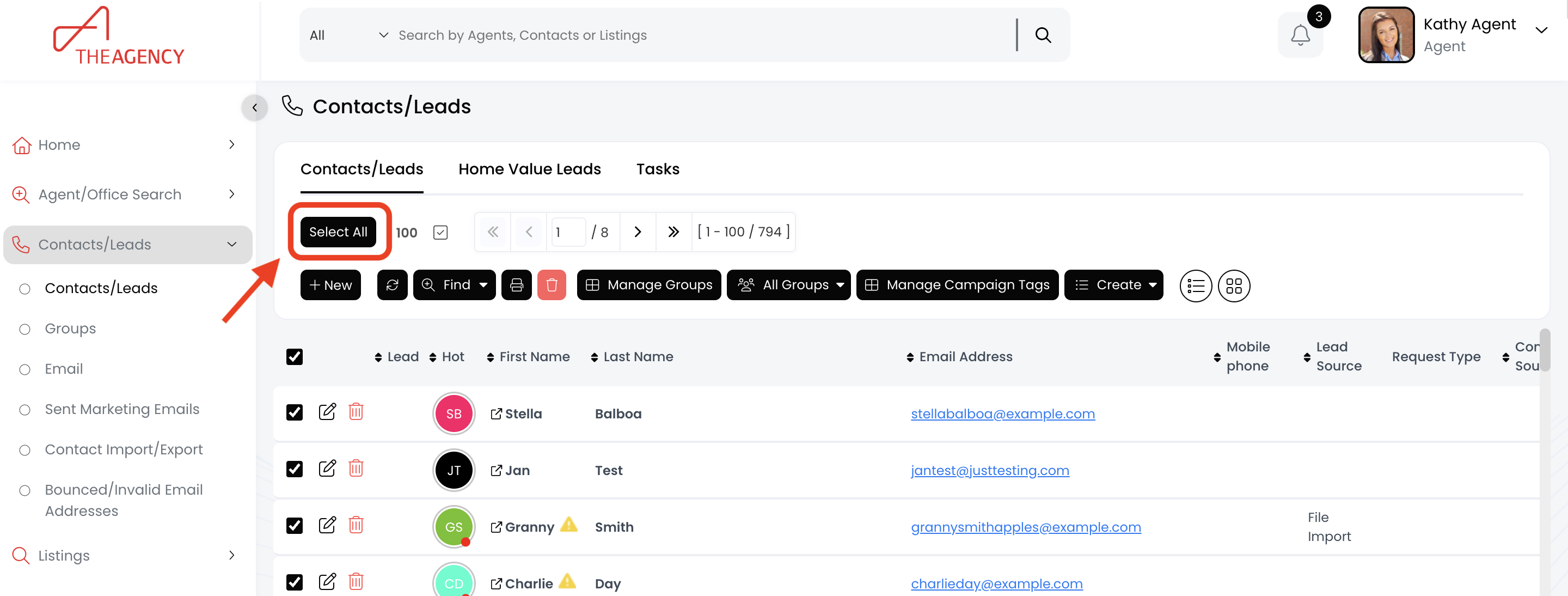
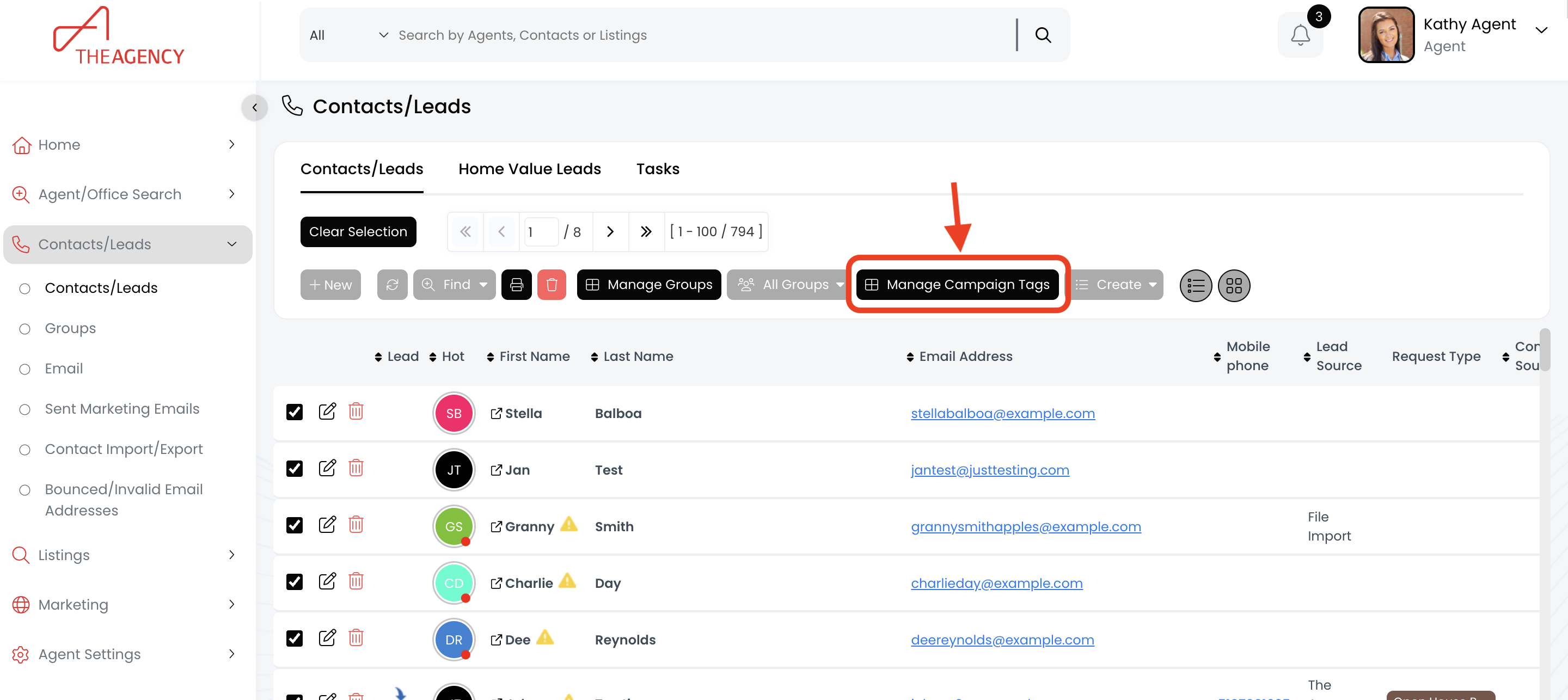
5.) Click on the Manage Campaign Tags button
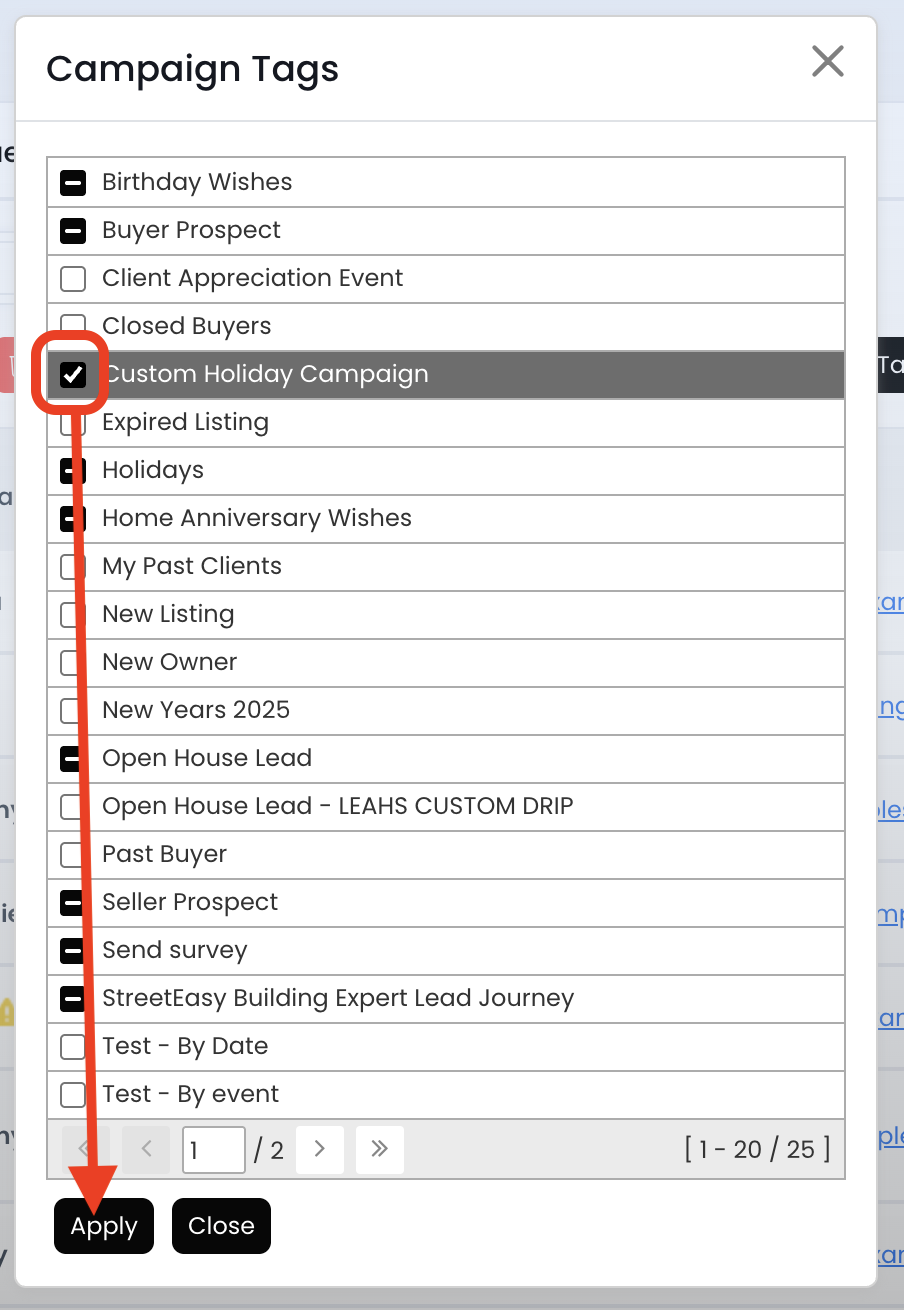
6.) Find the campaign tag and click the box to the left. Then hit the Apply button.
7.) Now all contacts have been added to this drip campaign!
*** This may take some time, especially if you have thousands of contacts. APT is adding this campaign tag to all of your contacts. When it's done, the pop-up screen will disappear and you'll see your contact list again ***

