



 3
3
The campaign tag feature manages the contacts on a drip campaign. Each drip campaign is associated with a unique campaign tag, and this specific tag must be removed from a contact to deactivate the drip campaign.
📺 Click here to watch the video tutorial 📺
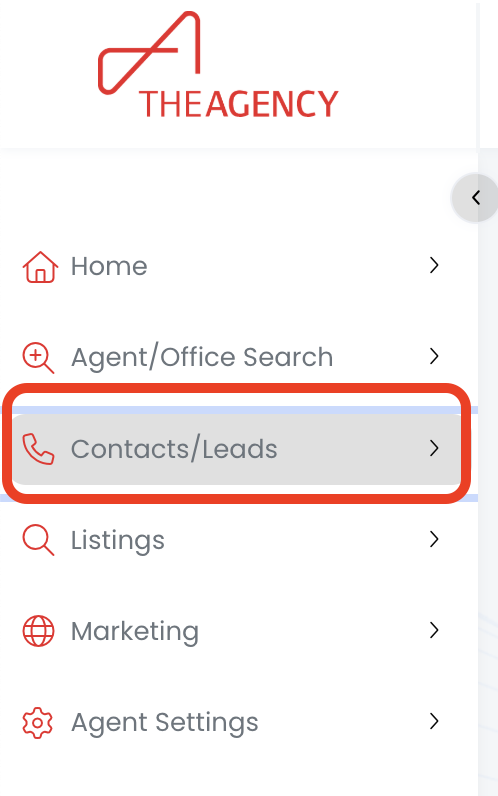
1.) Click on the Contacts/Leads menu
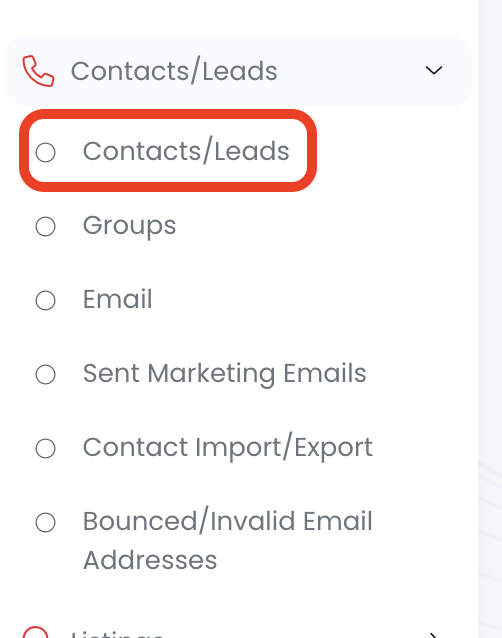
2.) Click on the Contacts/Leads option
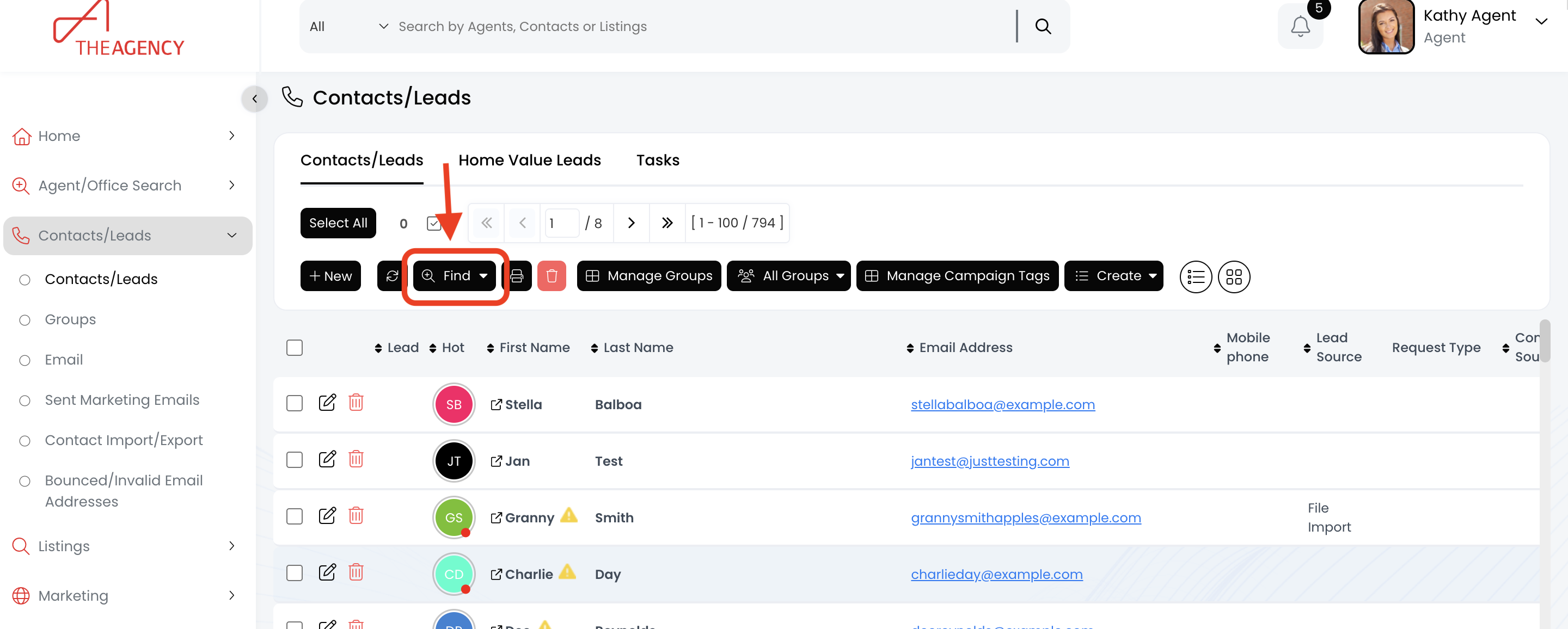
3.) Click on the Find button
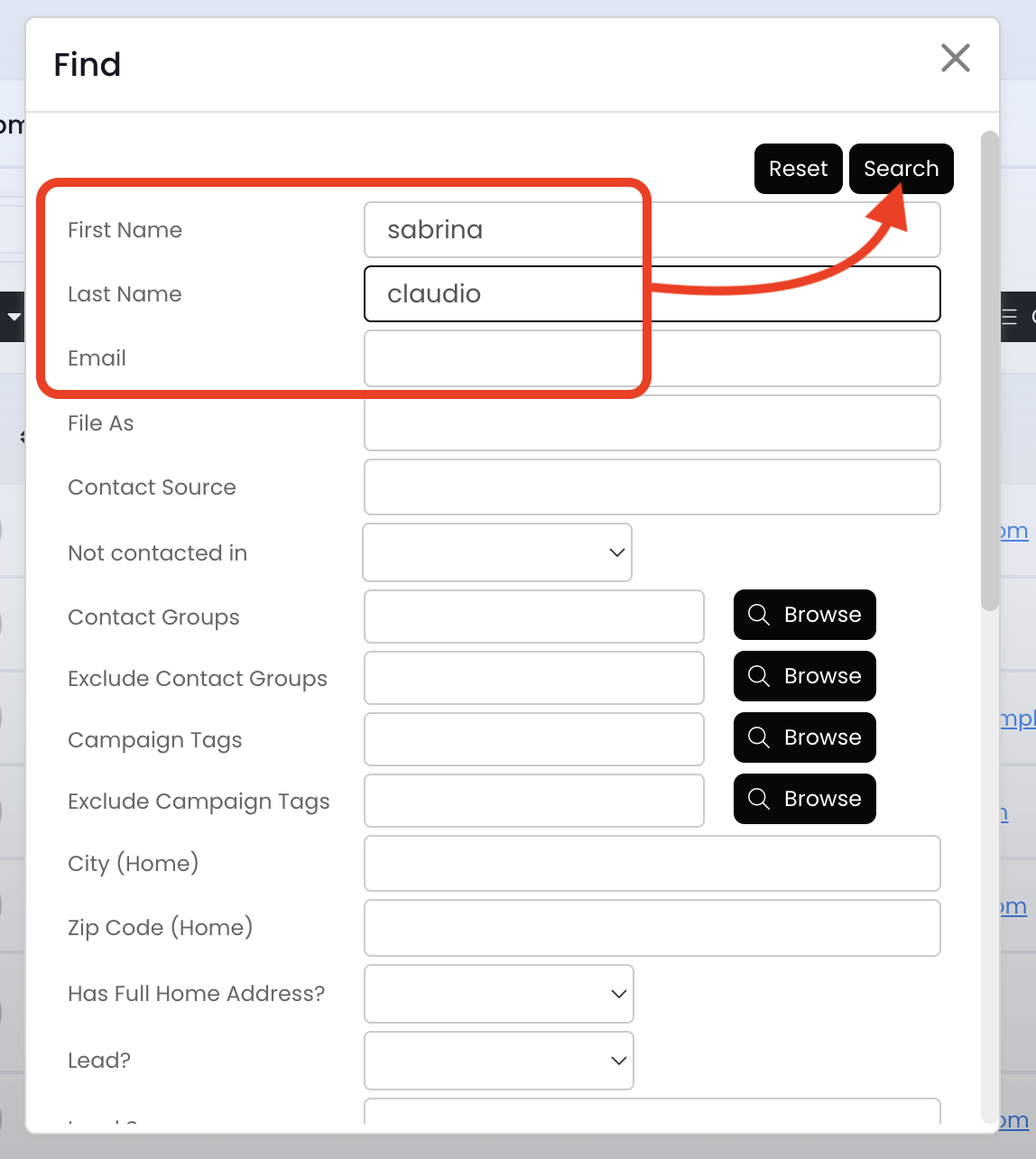
4.) Search for the contact using the first name, last name, or email fields and then hit Search
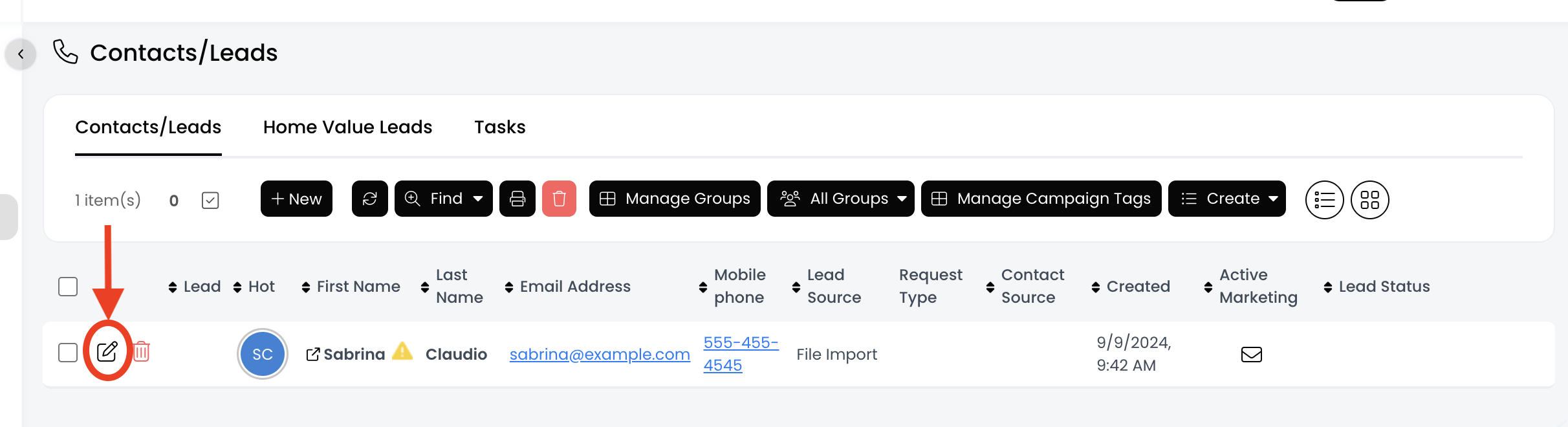
5.) Click on the pencil icon
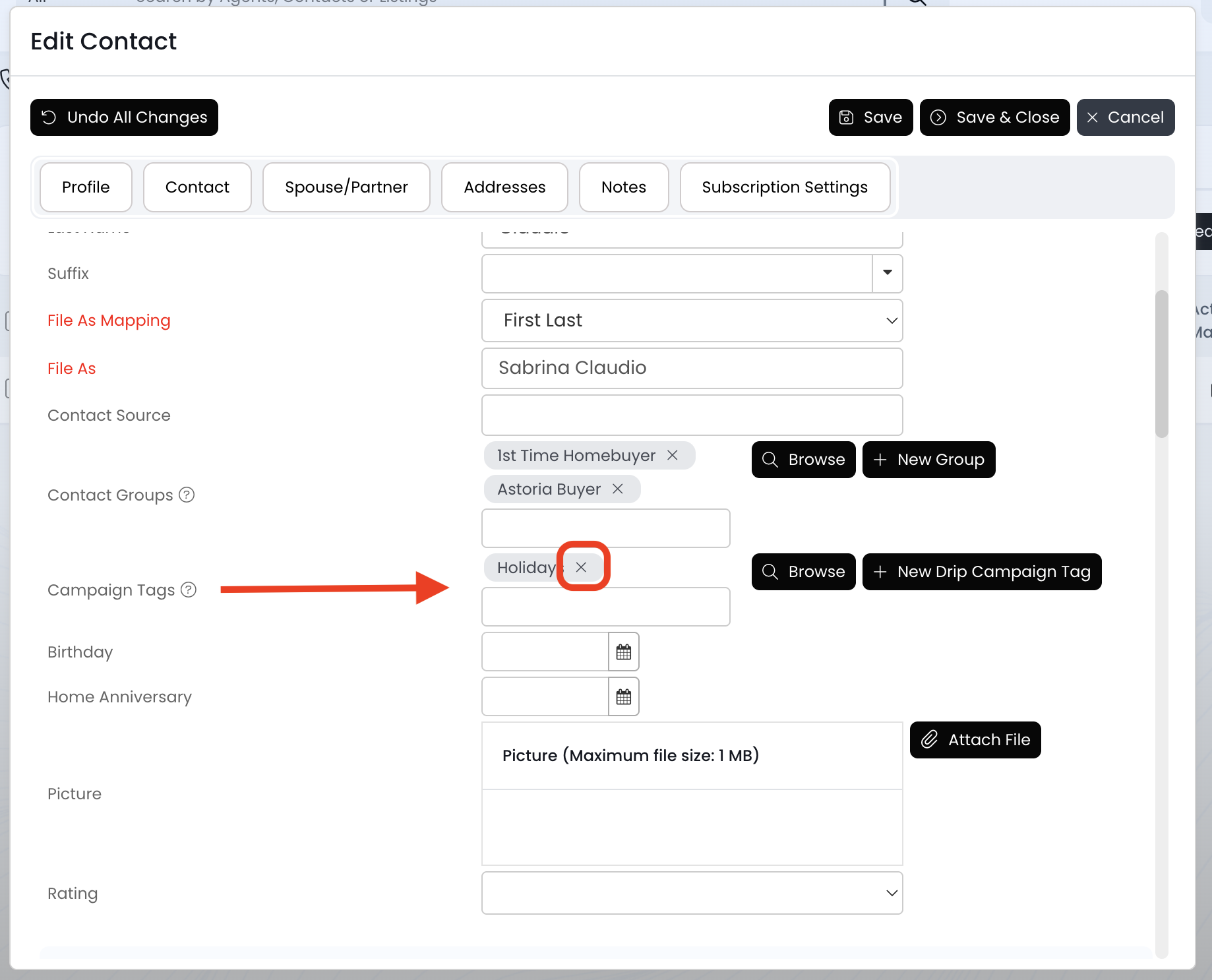
6.) Look for the "Campaign Tag" field and click on the X to the right of the campaign tag name
7.) You should now see the campaign tag has been removed. Once you confirm that, click on the Save & close button
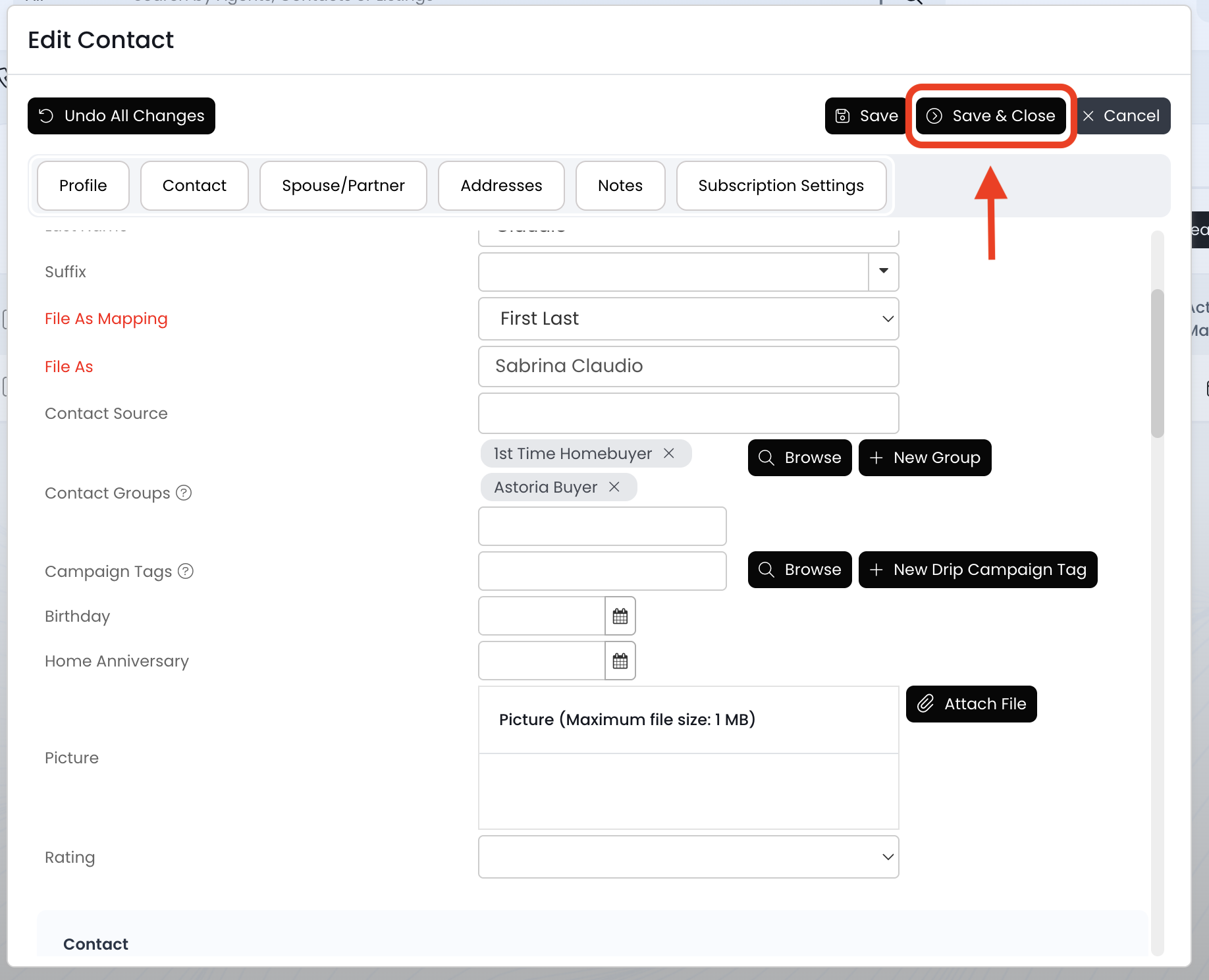
8.) Now this contact has been removed and will no longer receive emails from that drip campaign!

