



 18
18
Use the Contact Import/Export feature under the Contacts/Leads page to download your group of contacts from APT. If you select multiple groups, all the contacts will be on the same file.
📺 Click here to watch the video tutorial 📺
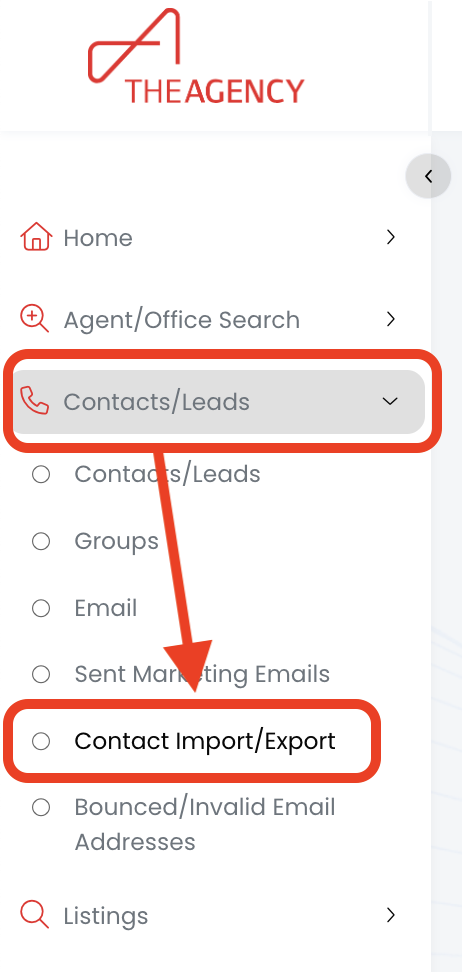
1.) From the left side menu, click on Contacts/Leads, and then click on Contact Import/Export
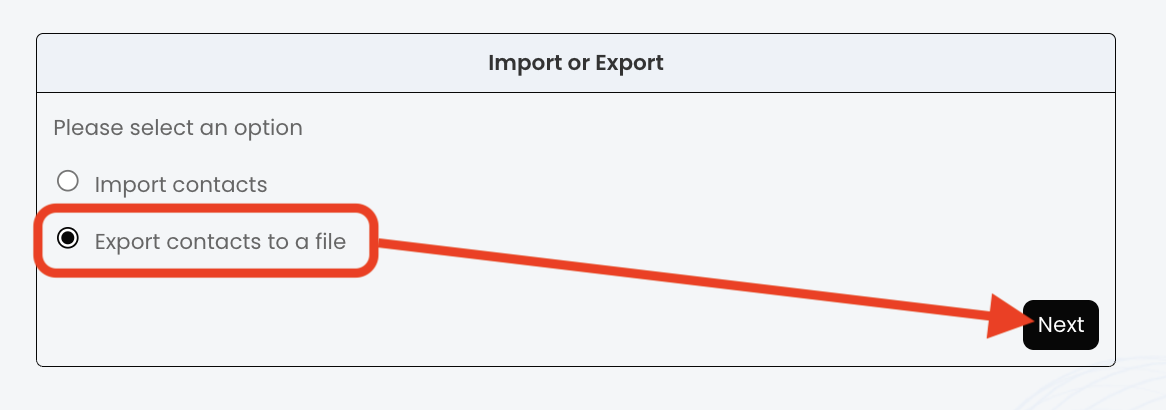
2.) Click on the Export contacts to a file option, then click Next
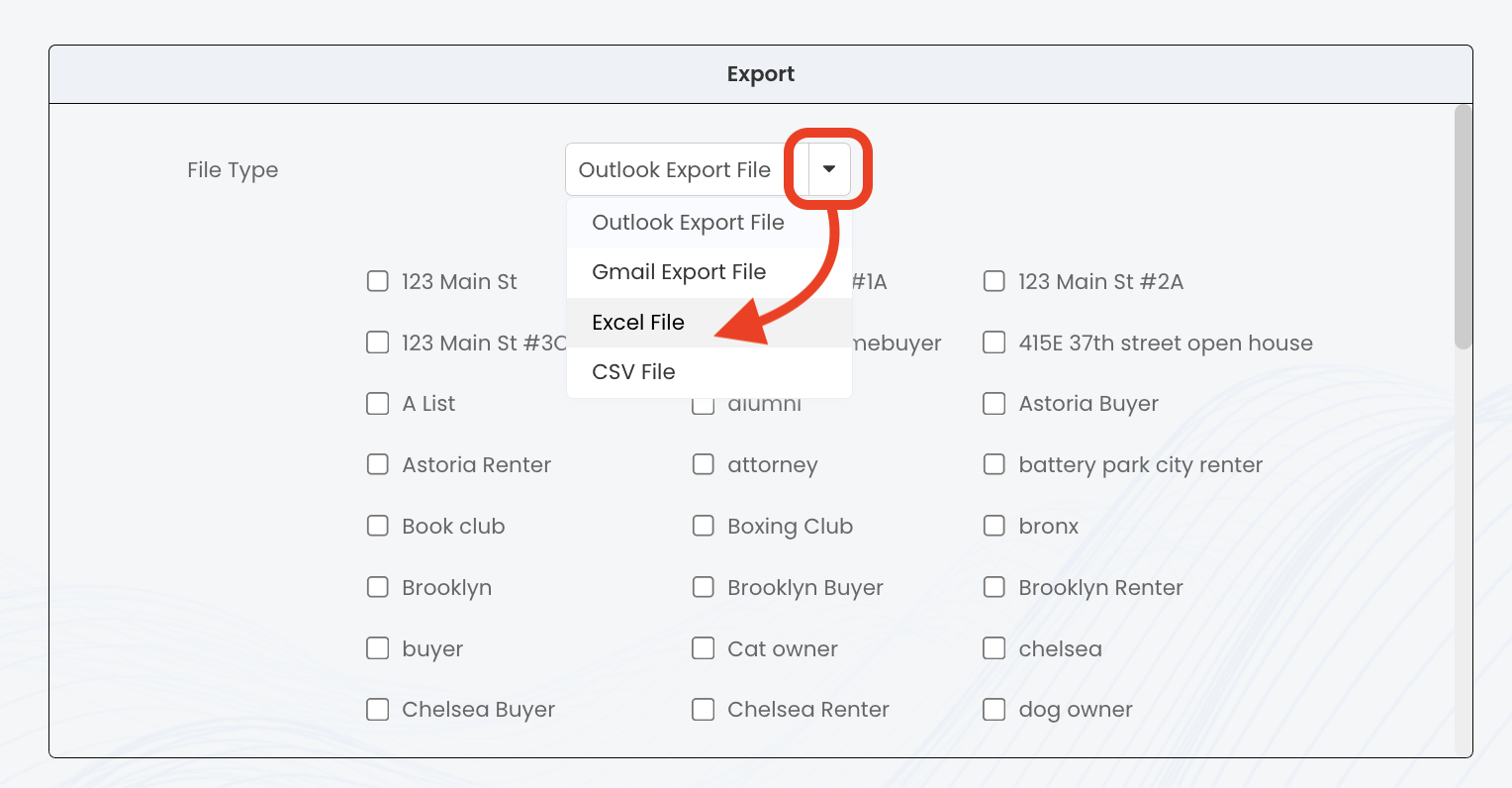
3.) Click on the drop-down arrow icon, and then select which file type you want the list to download as (most popular = Excel or CSV)
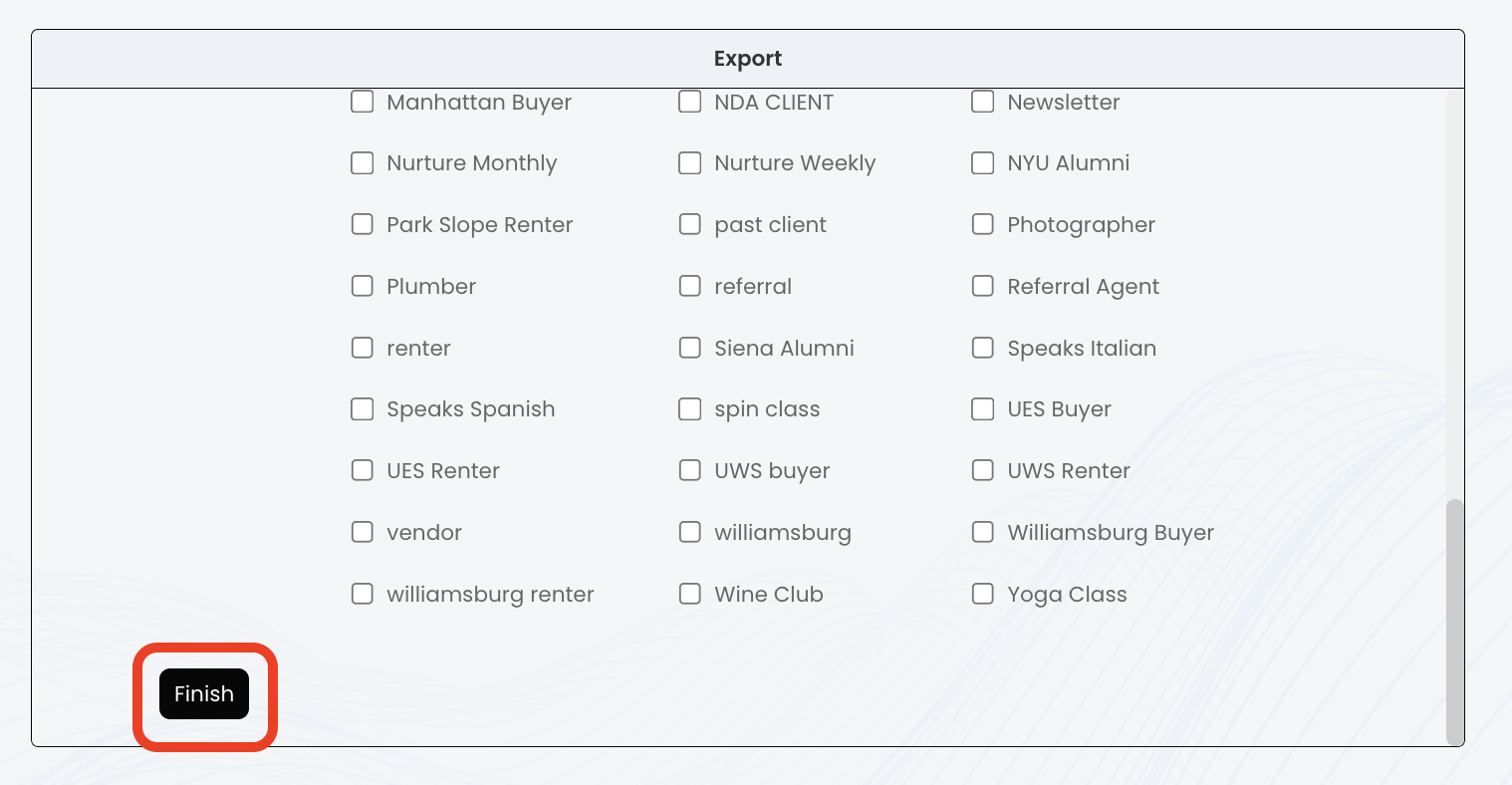
4.) Find the Group(s) you want and click the checkbox to the left to select
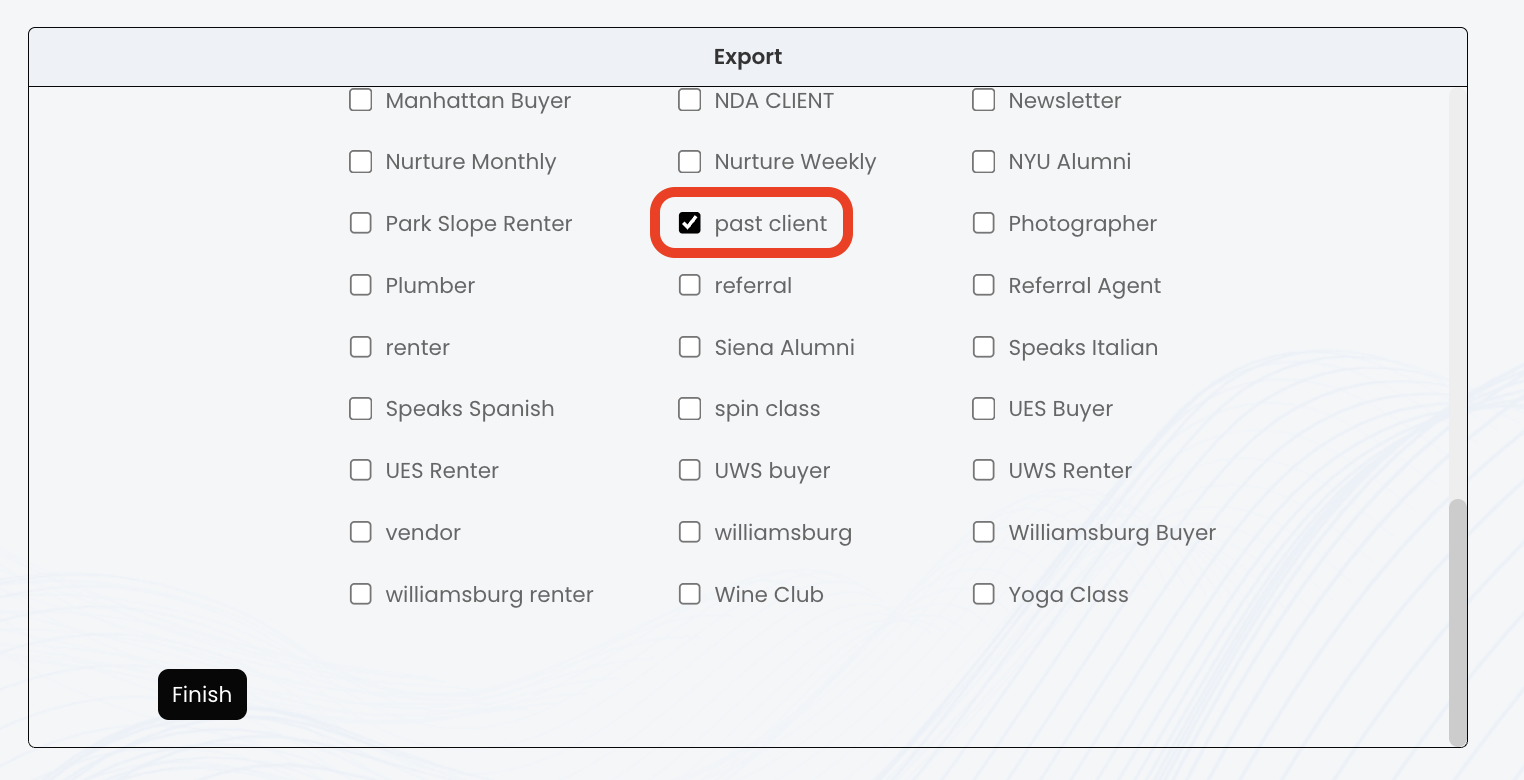
5.) Click on the Finish button
*** If you have a lot of groups, you will need to scroll down a bit to find the button ***
6.) Now you should have a file download including the information for the group(s) of contacts!

