23
23
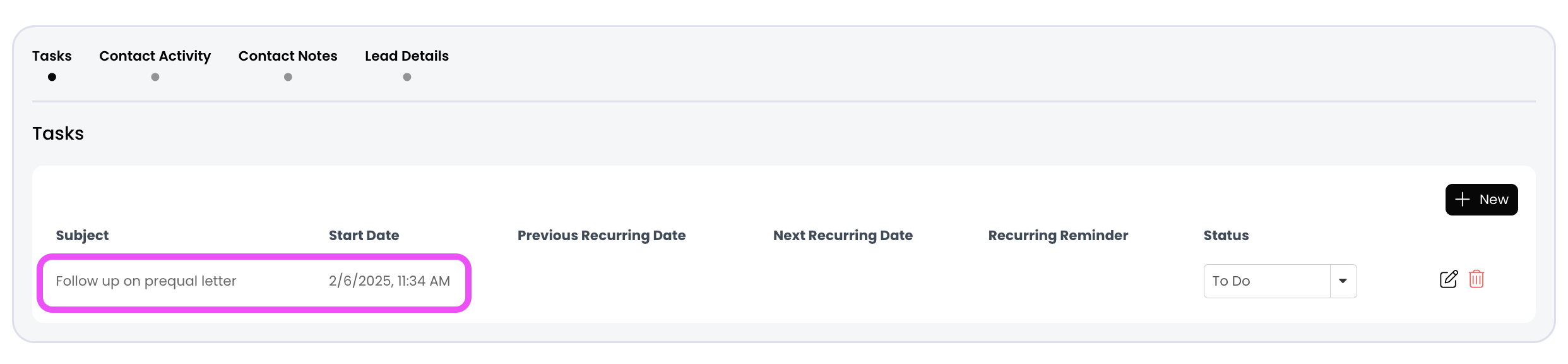
Use the task feature in APT to set a reminder for yourself. Go to the Contact Details page and click on the + New button under the Task section to get started!
📺 Click here to watch the video tutorial 📺
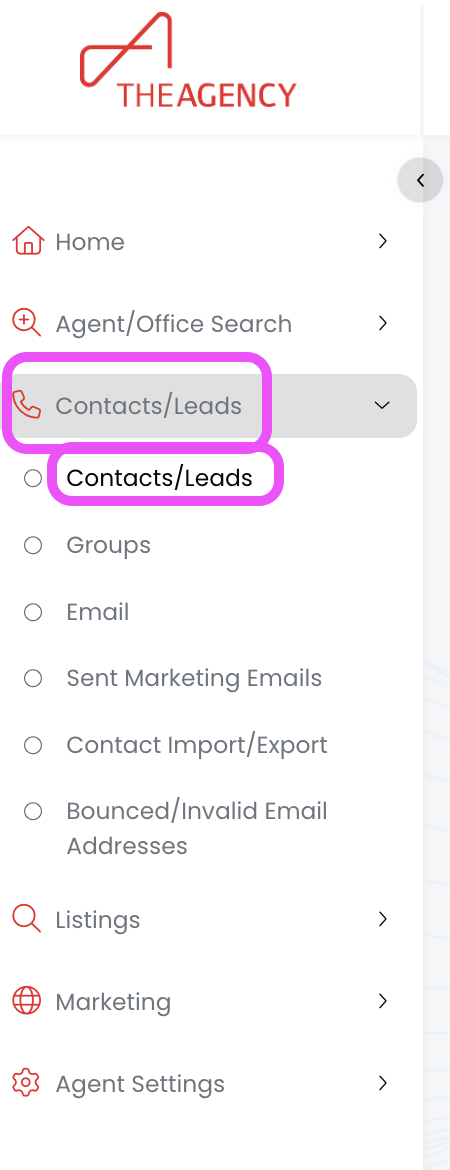
1.) From the left side menu, click on Contacts/Leads, and then click on Contacts/Leads again
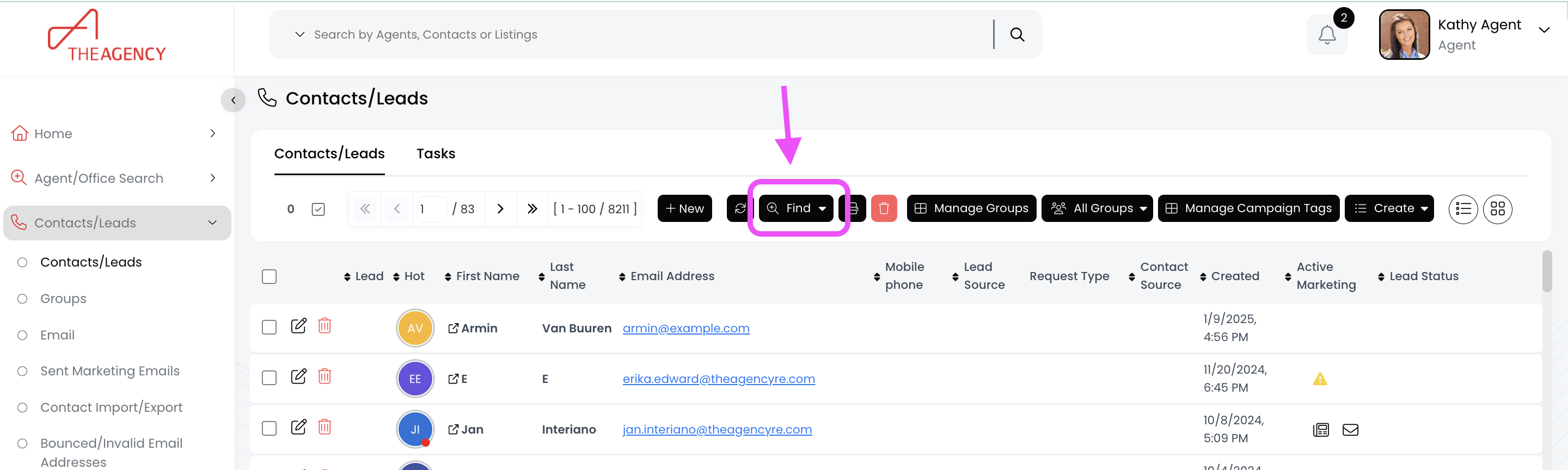
2.) Click on the Find button (top middle)
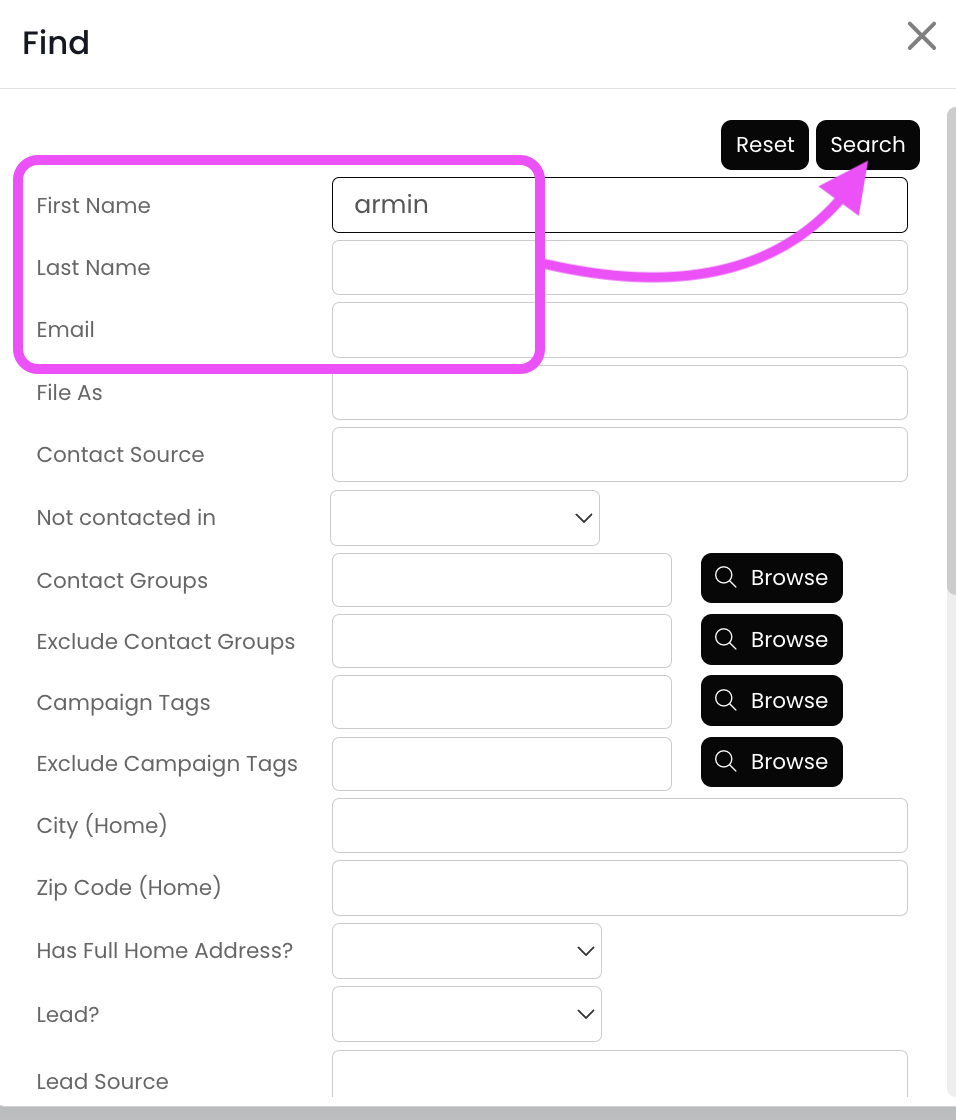
3.) Search for the contact using the first name, last name, or email fields and then hit Search
4.) Click on the contact's first name
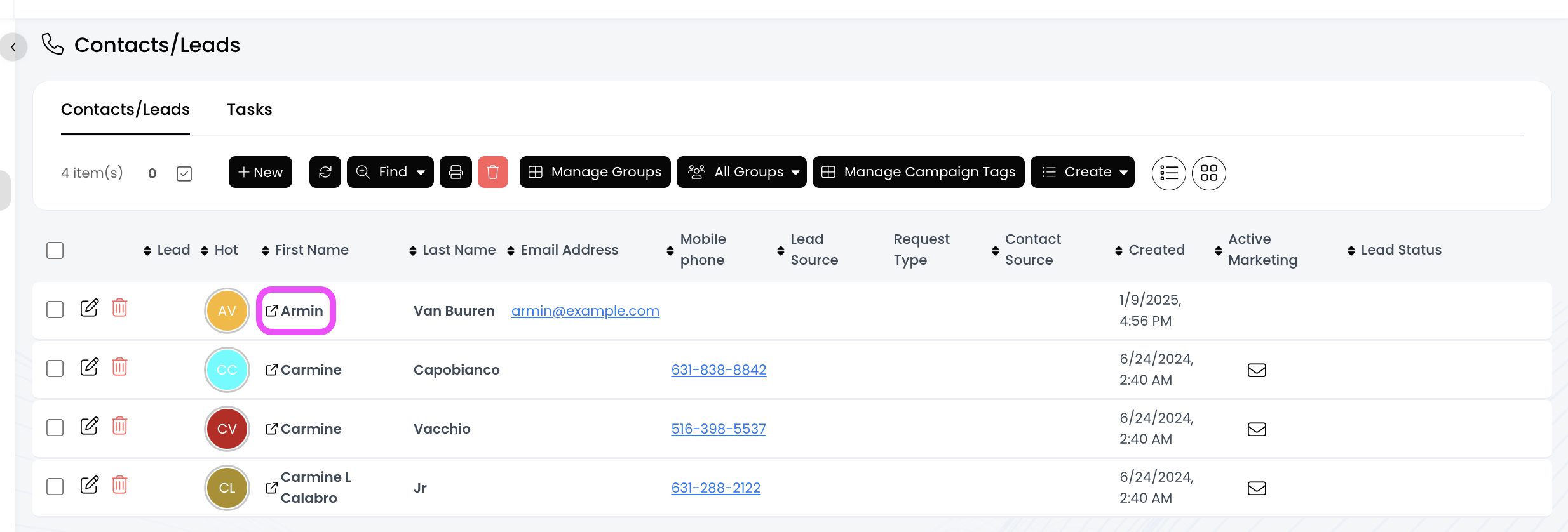
5.) Scroll down to the Tasks section and click on the + New button
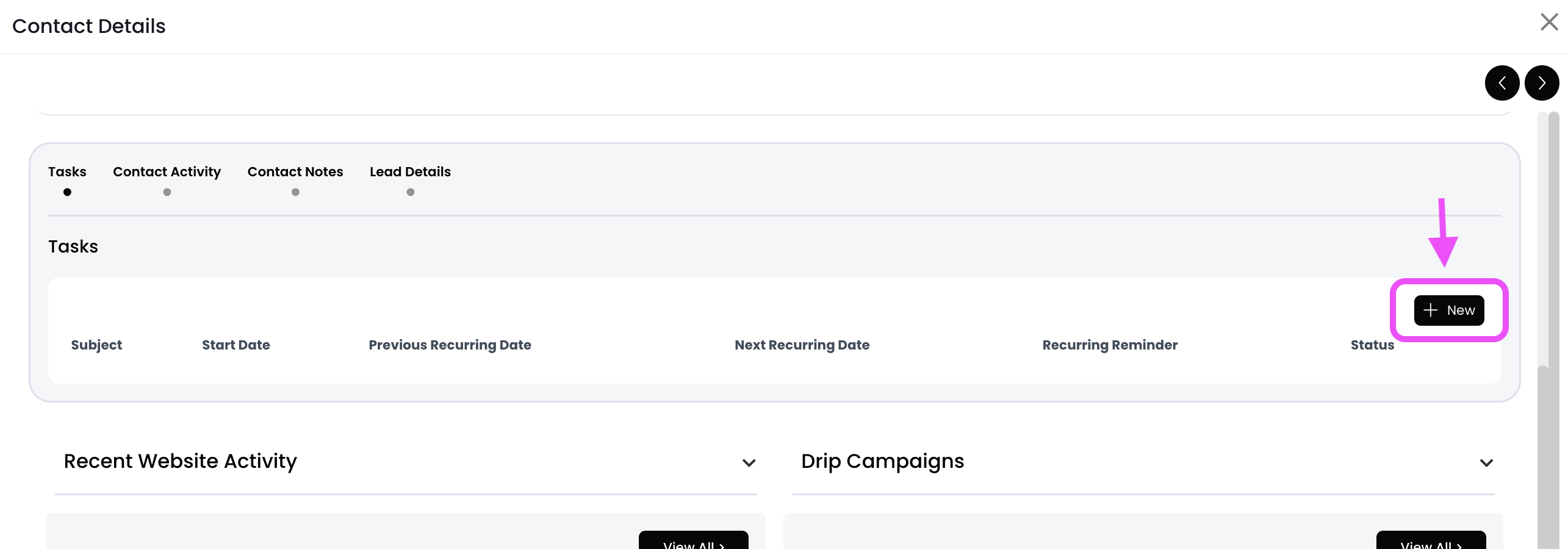
6.) Fill in the necessary info, and then click on the Save & Close button
Subject: A few words about what you need to do
Status: Leave it as "to do"
Start Date: Due date for this task
Body: Notes section (optional)
7.) Now the task has been created, and you should see it in the Tasks section!